local filesysytems and swap in Linux
Table of Contents
filesystem concepts#
A filesystem (aka filesystem) is the software structure (the formatting) that is located on a storage device or in memory, and dictates how data is organized there.
When a filesystem is located on a storage device, like a disk or DVDROM, then it is called a physical filesystem. When it is located in memory, like for example when the Linux kernel loads the proc filesystem in RAM, then it is called a virtual filesystem.
A storage device is typically not formatted with any filesystems. Most consumer-grade storage devices however, like USB thumbdrives, come pre-formatted with FAT or NTFS.
The filesystem must be mounted to a directory in the Linux tree for its files to become accessible.
The Linux tree is a hierarchy of directory and file locations, names and permissions, most of which has been standardized in an authoritative document called the Filesystem Hierarchy Standard (FHS). Red Hat slightly extended the FHS guidelines to meet the need for some files specific to RHEL. The Linux tree is generated by the Virtual File System (VFS) which is part of the Linux kernel.
A common misconception is that a filesystem is the directory structure visible in the terminal emulator; That is incorrect. Filesystems attach to the Linux tree at the mount points but the Linux tree is not a filesystem; The Linux tree is a virtual map of all filesystems that have been attached at different mount points.
A filesystem supports additional operations such as backup, labeling and resizing.
nature of filesystems#
A filesystem can be:
- local, i.e. installed on a server that has directly-attached storage devices. Examples: XFS and ext4. XFS is the default filesystem on RHEL machines.
- network-and-client, i.e. storage is accessible over a network. Example of such filesystems: NFS.
- volume managing.
The current article deals exclusively with local filesystems.
relationship between filesystems, block device nodes, logical volumes and mount points#
From the output of lsblk:
user1@rhel10-vm2:~$ lsblk
NAME          MAJ:MIN RM   SIZE RO TYPE MOUNTPOINTS
sda             8:0    0 409.6M  0 disk
├─sda1          8:1    0    20M  0 part
└─sda2          8:2    0  78.1M  0 part
sdb             8:16   0 399.4M  0 disk
sdc             8:32   0 399.4M  0 disk
sdd             8:48   0 399.4M  0 disk
sr0            11:0    1   9.5G  0 rom
vda           252:0    0    25G  0 disk
├─vda1        252:1    0     1M  0 part
├─vda2        252:2    0     1G  0 part /boot
└─vda3        252:3    0    24G  0 part
  ├─rhel-root 253:0    0    22G  0 lvm  /
  └─rhel-swap 253:1    0     2G  0 lvm  [SWAP]
user1@rhel10-vm2:~$
and mapping the first column to the devices, partitions or volumes:
user1@rhel10-vm2:~$ ls -l /dev | grep vda2
brw-rw----. 1 root disk    252,   2 Sep  2 05:17 vda2
user1@rhel10-vm2:~$ sudo lvs
[sudo] password for user1:
  LV   VG   Attr       LSize  Pool Origin Data%  Meta%  Move Log Cpy%Sync Convert
  root rhel -wi-ao---- 21.95g
  swap rhel -wi-ao----  2.04g
user1@rhel10-vm2:~$
and combining that with the results of mount:
user1@rhel10-vm2:~$ mount | grep -E "vda2|rhel-root"
/dev/mapper/rhel-root on / type xfs (rw,relatime,seclabel,attr2,inode64,logbufs=8,logbsize=32k,noquota)
/dev/vda2 on /boot type xfs (rw,relatime,seclabel,attr2,inode64,logbufs=8,logbsize=32k,noquota)
user1@rhel10-vm2:~$
I understand that:
- the filesystem, located on the storage device represented by /dev/vda2 partition is attached to the Linux tree at the /boot mount point,
- the filesystem, located on the storage device represented by the rhel-root LVM logical volume, which is from the /dev/vda3 partition, is attached to the Linux tree at the / mount point.
types of local filesystems#
mount -t restricts the output to filesystems of the specified type. Note that more than one filesystem of a particular type might appear in the output.
user1@rhel10-vm2:~$ sudo mount -t
adfs        coda        ext2        iso9660     ntfs-3g     smbfs       umsdos
affs        configfs    ext3        jffs2       pipefs      sockfs      usbfs
auto        cpuset      ext4        jfs         proc        squashfs    vfat
autofs      cramfs      fuse        minix       pstore      sysfs       xfs
bdev        davfs       fuseblk     mqueue      qnx4        sysv
bpf         debugfs     fusectl     msdos       ramfs       tmpfs
btrfs       devpts      hfs         ncpfs       reiserfs    tracefs
cgroup      devtmpfs    hfsplus     nfs         romfs       ubifs
cgroup2     efivarfs    hpfs        nfs4        securityfs  udf
cifs        efs         hugetlbfs   ntfs        selinuxfs   ufs
user1@rhel10-vm2:~$
user1@rhel10-vm2:~$ mount -t proc
proc on /proc type proc (rw,nosuid,nodev,noexec,relatime)
user1@rhel10-vm2:~$
user1@rhel10-vm2:~$ mount -t debugfs
debugfs on /sys/kernel/debug type debugfs (rw,nosuid,nodev,noexec,relatime,seclabel)
user1@rhel10-vm2:~$
Wassim@linux:~$ mount -t xfs
/dev/mapper/rl-root on / type xfs (rw,relatime,seclabel,attr2,inode64,logbufs=8,logbsize=32k,noquota)
/dev/nvme0n1p2 on /boot type xfs (rw,relatime,seclabel,attr2,inode64,logbufs=8,logbsize=32k,noquota)
/dev/mapper/rl-home on /home type xfs (rw,relatime,seclabel,attr2,inode64,logbufs=8,logbsize=32k,noquota)
Wassim@linux:~$
XFS#
XFS filesystems can be found by grepping on the mount command:
user1@rhel10-vm2:~$ mount | grep xfs
/dev/mapper/rhel-root on / type xfs (rw,relatime,seclabel,attr2,inode64,logbufs=8,logbsize=32k,noquota)
selinuxfs on /sys/fs/selinux type selinuxfs (rw,nosuid,noexec,relatime)
/dev/vda2 on /boot type xfs (rw,relatime,seclabel,attr2,inode64,logbufs=8,logbsize=32k,noquota)
user1@rhel10-vm2:~$
To create an XFS filesystem, I use the mkfs command and specify xfs as argument for the -t option. For example, I create an XFS filesystem on a logical volume:
user1@rhel10-vm2:~$ lsblk
NAME           MAJ:MIN RM   SIZE RO TYPE MOUNTPOINTS
sda              8:0    0 409.6M  0 disk
├─vgfs-ext4vol 253:2    0    72M  0 lvm
└─vgfs-xfsvol  253:3    0   320M  0 lvm
sdb              8:16   0 409.6M  0 disk
├─sdb1           8:17   0   150M  0 part
└─sdb2           8:18   0   150M  0 part
sdc              8:32   0 409.6M  0 disk
sr0             11:0    1   9.5G  0 rom
vda            252:0    0    25G  0 disk
├─vda1         252:1    0     1M  0 part
├─vda2         252:2    0     1G  0 part /boot
└─vda3         252:3    0    24G  0 part
  ├─rhel-root  253:0    0    22G  0 lvm  /
  └─rhel-swap  253:1    0     2G  0 lvm  [SWAP]
user1@rhel10-vm2:~$
user1@rhel10-vm2:~$ sudo lvs vgfs
  LV      VG   Attr       LSize   Pool Origin Data%  Meta%  Move Log Cpy%Sync Convert
  ext4vol vgfs -wi-a-----  72.00m
  xfsvol  vgfs -wi-a----- 320.00m
user1@rhel10-vm2:~$
user1@rhel10-vm2:~$ sudo mkfs -t xfs /dev/vgfs/xfsvol
meta-data=/dev/vgfs/xfsvol       isize=512    agcount=4, agsize=20480 blks
         =                       sectsz=512   attr=2, projid32bit=1
         =                       crc=1        finobt=1, sparse=1, rmapbt=1
         =                       reflink=1    bigtime=1 inobtcount=1 nrext64=1
         =                       exchange=0
data     =                       bsize=4096   blocks=81920, imaxpct=25
         =                       sunit=0      swidth=0 blks
naming   =version 2              bsize=4096   ascii-ci=0, ftype=1, parent=0
log      =internal log           bsize=4096   blocks=16384, version=2
         =                       sectsz=512   sunit=0 blks, lazy-count=1
realtime =none                   extsz=4096   blocks=0, rtextents=0
Discarding blocks...Done.
user1@rhel10-vm2:~$
To verify the filesystem, I use the -f option (f for filesystem) of lsblk.
user1@rhel10-vm2:~$ lsblk -f /dev/vgfs/xfsvol
NAME        FSTYPE FSVER LABEL UUID                                 FSAVAIL FSUSE% MOUNTPOINTS
vgfs-xfsvol xfs                4f91a6a3-9dc1-480c-9467-379666ef7566
user1@rhel10-vm2:~$
With the default configuration in /etc/mke2fs.conf, the XFS filesystem is not supported. Thus it was not possible to create an XFS filesystem on the logical volume:
user1@rhel10-vm2:~$ sudo mke2fs -cvt xfs /dev/vgfs/xfsvol
[sudo] password for user1:
mke2fs 1.47.1 (20-May-2024)

Your mke2fs.conf file does not define the xfs filesystem type.
Aborting...
user1@rhel10-vm2:~$
user1@rhel10-vm2:~$ grep xfs /etc/mke2fs.conf
user1@rhel10-vm2:~$
VFAT#
A VFAT filesystem is a Linux filesystem that is compatible with Microsoft FAT filesystem.
I use mkfs to create a VFAT filesystem on a block device:
user1@rhel10-vm2:~$ lsblk -f /dev/sdb
NAME   FSTYPE FSVER LABEL UUID                                 FSAVAIL FSUSE% MOUNTPOINTS
sdb
├─sdb1 ext4   1.0         72cdbb05-64a5-4a91-982f-c80b873a9536
└─sdb2
user1@rhel10-vm2:~$ mkfs.vfat /dev/sdb2
mkfs.fat 4.2 (2021-01-31)
mkfs.vfat: unable to open /dev/sdb2: Permission denied
user1@rhel10-vm2:~$ sudo mkfs.vfat /dev/sdb2
[sudo] password for user1:
mkfs.fat 4.2 (2021-01-31)
user1@rhel10-vm2:~$
user1@rhel10-vm2:~$ lsblk -f /dev/sdb2
NAME FSTYPE FSVER LABEL UUID                                 FSAVAIL FSUSE% MOUNTPOINTS
sdb2 vfat   FAT16       454C-606D
user1@rhel10-vm2:~$
Another example while showing more columns in lsblk:
user1@rhel10-vm2:~$ sudo mkfs.vfat /dev/sda2
[sudo] password for user1:
mkfs.fat 4.2 (2021-01-31)
user1@rhel10-vm2:~$
user1@rhel10-vm2:~$ lsblk -o NAME,PARTTYPE,PARTLABEL,FSTYPE,LABEL /dev/sda
NAME   PARTTYPE PARTLABEL FSTYPE LABEL
sda
├─sda1 0x83
└─sda2 0x83               vfat
user1@rhel10-vm2:~$
I set a filesystem label for VFAT filesystems with fablabel:
user1@rhel10-vm2:~$ fatlabel /dev/sda2
open: Permission denied
user1@rhel10-vm2:~$ sudo fatlabel /dev/sda2 MYFATFSLABEL
fatlabel: labels can be no longer than 11 characters
user1@rhel10-vm2:~$ sudo fatlabel /dev/sda2 MYFATLABEL
user1@rhel10-vm2:~$ sudo fatlabel /dev/sda2
MYFATLABEL
user1@rhel10-vm2:~$
user1@rhel10-vm2:~$ lsblk -o NAME,PARTTYPE,PARTLABEL,FSTYPE,LABEL /dev/sda2
NAME PARTTYPE PARTLABEL FSTYPE LABEL
sda2 0x83               vfat   MYFATLABEL
user1@rhel10-vm2:~$
ext4#
I use the mke2fs command to create ext4 filesystems. For example, I initialize a logical volume with ext4 using mke2fs.
Note that the logical volume must be entered in the form /dev/{volume_group_name}/{logical_volume_name} or the mke2fs command throws an error:
user1@rhel10-vm2:~$ mke2fs -cvt ext4 /dev/sda/vgfs-ext4vol
mke2fs 1.47.1 (20-May-2024)
mke2fs: Not a directory while trying to determine filesystem size
user1@rhel10-vm2:~$
user1@rhel10-vm2:~$ sudo mke2fs -cvt ext4 vgfs/ext4vol
[sudo] password for user1:
mke2fs 1.47.1 (20-May-2024)
The file vgfs/ext4vol does not exist and no size was specified.
user1@rhel10-vm2:~$
user1@rhel10-vm2:~$ sudo mke2fs -cvt ext4 /dev/vgfs/ext4vol
[sudo] password for user1:
mke2fs 1.47.1 (20-May-2024)
fs_types for mke2fs.conf resolution: 'ext4', 'small'
Discarding device blocks: done
Filesystem label=
OS type: Linux
Block size=1024 (log=0)
Fragment size=1024 (log=0)
Stride=0 blocks, Stripe width=0 blocks
18432 inodes, 73728 blocks
3686 blocks (5.00%) reserved for the super user
First data block=1
Maximum filesystem blocks=33685504
9 block groups
8192 blocks per group, 8192 fragments per group
2048 inodes per group
Filesystem UUID: 5377d2bc-f963-4db5-b0dc-679481b8da82
Superblock backups stored on blocks:
	8193, 24577, 40961, 57345

Running command: badblocks -b 1024 -X -s /dev/vgfs/ext4vol 73727
Checking for bad blocks (read-only test): done
Allocating group tables: done
Writing inode tables: done
Creating journal (4096 blocks): done
Writing superblocks and filesystem accounting information: done

user1@rhel10-vm2:~$
local filesystems vs partition tables#
After initializing a disk with a partition table, I tried to create a filesystem on it. I got a warning from mke2fs:
user1@rhel10-vm2:~$ sudo fdisk /dev/sda

Welcome to fdisk (util-linux 2.40.2).
Changes will remain in memory only, until you decide to write them.
Be careful before using the write command.


Command (m for help): p
Disk /dev/sda: 409.6 MiB, 429497344 bytes, 838862 sectors
Disk model: QEMU HARDDISK
Units: sectors of 1 * 512 = 512 bytes
Sector size (logical/physical): 512 bytes / 512 bytes
I/O size (minimum/optimal): 512 bytes / 512 bytes
Disklabel type: gpt
Disk identifier: 1AB7E0AD-A699-433F-ACD5-4B7DB26500F8

Command (m for help): q

user1@rhel10-vm2:~$ sudo mke2fs -t ext3 /dev/sda
mke2fs 1.47.1 (20-May-2024)
Found a gpt partition table in /dev/sda
Proceed anyway? (y,N)
After investigating the issue, I learned that I was trying to overwrite the partition table metadata with the filesystem metadata, since both occupy overlapping sectors on the disk. The proof is that I went on with the procedure. The result shows that /dev/sda partition table has been overwritten to dos:
user1@rhel10-vm2:~$ sudo mke2fs -t ext3 /dev/sda
mke2fs 1.47.1 (20-May-2024)
Found a gpt partition table in /dev/sda
Proceed anyway? (y,N) y
Discarding device blocks: done
Creating filesystem with 419428 1k blocks and 104832 inodes
Filesystem UUID: 97f130eb-8dfb-404f-a6ef-41876c7ed3c8
Superblock backups stored on blocks:
	8193, 24577, 40961, 57345, 73729, 204801, 221185, 401409

Allocating group tables: done
Writing inode tables: done
Creating journal (8192 blocks): done
Writing superblocks and filesystem accounting information: done

user1@rhel10-vm2:~$
user1@rhel10-vm2:~$ sudo fdisk /dev/sda
[sudo] password for user1:

Welcome to fdisk (util-linux 2.40.2).
Changes will remain in memory only, until you decide to write them.
Be careful before using the write command.

The device contains 'ext3' signature and it will be removed by a write command. See fdisk(8) man page and --wipe option for more details.

Device does not contain a recognized partition table.
Created a new DOS (MBR) disklabel with disk identifier 0x77707be1.

Command (m for help): p
Disk /dev/sda: 409.6 MiB, 429497344 bytes, 838862 sectors
Disk model: QEMU HARDDISK
Units: sectors of 1 * 512 = 512 bytes
Sector size (logical/physical): 512 bytes / 512 bytes
I/O size (minimum/optimal): 512 bytes / 512 bytes
Disklabel type: dos
Disk identifier: 0x77707be1

Command (m for help):
This is bad for a production system. #LessonLearned create filesystems on partitions and LVM logical volumes, not on a whole disk.
mount and unmount filesystems#
Creating a filesystem with commands like mkfs or mke2fs is not enough to make the filesystem accessible. Mounting it is necessary.
Mounting a filesystem means to expose it to the Linux tree at a specific mount point. Once mounted, the filesystem is accessible via the mount point. The latter is a location in the Linux tree.
To mount a filesystem, either use the mount command and specify the mount point (create the directory if it does not exist yet) or add a suitable entry to /etc/fstab for a permanent automatic mount after each system reboot.
The list of all mounted filesystems is displayed with mount:
user1@rhel10-vm2:~$ mount
/dev/mapper/rhel-root on / type xfs (rw,relatime,seclabel,attr2,inode64,logbufs=8,logbsize=32k,noquota)
devtmpfs on /dev type devtmpfs (rw,nosuid,seclabel,size=4096k,nr_inodes=213658,mode=755,inode64)
tmpfs on /dev/shm type tmpfs (rw,nosuid,nodev,seclabel,inode64)
devpts on /dev/pts type devpts (rw,nosuid,noexec,relatime,seclabel,gid=5,mode=620,ptmxmode=000)
sysfs on /sys type sysfs (rw,nosuid,nodev,noexec,relatime,seclabel)
securityfs on /sys/kernel/security type securityfs (rw,nosuid,nodev,noexec,relatime)
cgroup2 on /sys/fs/cgroup type cgroup2 (rw,nosuid,nodev,noexec,relatime,seclabel,nsdelegate,memory_recursiveprot)
pstore on /sys/fs/pstore type pstore (rw,nosuid,nodev,noexec,relatime,seclabel)
bpf on /sys/fs/bpf type bpf (rw,nosuid,nodev,noexec,relatime,mode=700)
configfs on /sys/kernel/config type configfs (rw,nosuid,nodev,noexec,relatime)
proc on /proc type proc (rw,nosuid,nodev,noexec,relatime)
tmpfs on /run type tmpfs (rw,nosuid,nodev,seclabel,size=349228k,nr_inodes=819200,mode=755,inode64)
selinuxfs on /sys/fs/selinux type selinuxfs (rw,nosuid,noexec,relatime)
systemd-1 on /proc/sys/fs/binfmt_misc type autofs (rw,relatime,fd=36,pgrp=1,timeout=0,minproto=5,maxproto=5,direct,pipe_ino=5615)
debugfs on /sys/kernel/debug type debugfs (rw,nosuid,nodev,noexec,relatime,seclabel)
hugetlbfs on /dev/hugepages type hugetlbfs (rw,nosuid,nodev,relatime,seclabel,pagesize=2M)
tracefs on /sys/kernel/tracing type tracefs (rw,nosuid,nodev,noexec,relatime,seclabel)
mqueue on /dev/mqueue type mqueue (rw,nosuid,nodev,noexec,relatime,seclabel)
tmpfs on /run/credentials/systemd-journald.service type tmpfs (ro,nosuid,nodev,noexec,relatime,nosymfollow,seclabel,size=1024k,nr_inodes=1024,mode=700,inode64,noswap)
fusectl on /sys/fs/fuse/connections type fusectl (rw,nosuid,nodev,noexec,relatime)
/dev/vda2 on /boot type xfs (rw,relatime,seclabel,attr2,inode64,logbufs=8,logbsize=32k,noquota)
tmpfs on /run/credentials/[email protected] type tmpfs (ro,nosuid,nodev,noexec,relatime,nosymfollow,seclabel,size=1024k,nr_inodes=1024,mode=700,inode64,noswap)
tmpfs on /run/credentials/[email protected] type tmpfs (ro,nosuid,nodev,noexec,relatime,nosymfollow,seclabel,size=1024k,nr_inodes=1024,mode=700,inode64,noswap)
tmpfs on /run/user/1000 type tmpfs (rw,nosuid,nodev,relatime,seclabel,size=174612k,nr_inodes=43653,mode=700,uid=1000,gid=1000,inode64)
user1@rhel10-vm2:~$
After each modification of /etc/fstab:
- do a
findmnt --verifyto verify the syntax. According to Linux man pages, usingmount -ato verify the syntax of /etc/fstab is a bad habit. This surprised me because it was suggested in the RHEL10 Exam Guide I was studying from, - do
systemctl daemon-reloadto make systemd aware of the changes in /etc/fstab.
user1@rhel10-vm2:~$ sudo vim /etc/fstab
[sudo] password for user1:

<---- file has been modified ---->

user1@rhel10-vm2:~$
user1@rhel10-vm2:~$ findmnt --verify
/
   [W] cannot detect on-disk filesystem type (Permission denied)
/boot
   [W] cannot detect on-disk filesystem type (Permission denied)
none
   [W] target specified more than once
   [W] cannot detect on-disk filesystem type (Permission denied)
/ext4fs2
   [W] cannot detect on-disk filesystem type (Permission denied)
/xfsfs2
   [W] cannot detect on-disk filesystem type (Permission denied)
none
   [W] cannot detect on-disk filesystem type (Permission denied)
   [W] your fstab has been modified, but systemd still uses the old version;
       use 'systemctl daemon-reload' to reload

0 parse errors, 0 errors, 8 warnings
user1@rhel10-vm2:~$ sudo findmnt --verify
none
   [W] target specified more than once
   [W] your fstab has been modified, but systemd still uses the old version;
       use 'systemctl daemon-reload' to reload

0 parse errors, 0 errors, 2 warnings
user1@rhel10-vm2:~$
user1@rhel10-vm2:~$ systemctl daemon-reload
==== AUTHENTICATING FOR org.freedesktop.systemd1.reload-daemon ====
Authentication is required to reload the systemd state.
Authenticating as: user1
Password:
==== AUTHENTICATION COMPLETE ====
user1@rhel10-vm2:~$
user1@rhel10-vm2:~$
mount -a mounts all filesystems seen in /etc/fstab, as per the man pages.
Here is a scenario where findmnt helps prevent system boot errors, by detecting errors in /etc/fstab: I intentionally introduced a mistake in the mount point of a partition that I wanted to mount at boot time:
user1@rhel10-vm2:~$ lsblk -o NAME,PARTTYPE,PARTLABEL,FSTYPE,LABEL
NAME          PARTTYPE                             PARTLABEL FSTYPE      LABEL
sda
├─sda1        0x83
└─sda2        0x83                                           vfat        MYFATLABEL

<--- output omitted --->
user1@rhel10-vm2:~$ cat /etc/fstab | grep /dev/sda2
user1@rhel10-vm2:~$
user1@rhel10-vm2:~$ sudo vim /etc/fstab
[sudo] password for user1:
#
# /etc/fstab
# Created by anaconda on Sat Nov 15 11:18:34 2025
#
# Accessible filesystems, by reference, are maintained under '/dev/disk/'.
# See man pages fstab(5), findfs(8), mount(8) and/or blkid(8) for more info.
#
# After editing this file, run 'systemctl daemon-reload' to update systemd
# units generated from this file.
#
UUID=1cc2a0e5-8ea2-4b31-bbe7-a6d47a824276 /                       xfs     defaults        0 0
UUID=aeaf7891-fb70-4df0-90b6-bbd996703b8d /boot                   xfs     defaults        0 0
UUID=543756ba-806e-4129-bc0b-757fb1e4d832 none                    swap    defaults        0 0
LABEL=MYFATLABEL /mountPoint02 fat defaults 0 0
~
user1@rhel10-vm2:~$ sudo mkdir /mnt/mountPoint02
user1@rhel10-vm2:~$
user1@rhel10-vm2:~$ findmnt --verify
/
   [W] cannot detect on-disk filesystem type (Permission denied)
/boot
   [W] cannot detect on-disk filesystem type (Permission denied)
none
   [W] cannot detect on-disk filesystem type (Permission denied)
/mountPoint02
   [E] unreachable on boot required target: No such file or directory
   [W] cannot detect on-disk filesystem type (Permission denied)
   [W] your fstab has been modified, but systemd still uses the old version;
       use 'systemctl daemon-reload' to reload

0 parse errors, 1 error, 5 warnings
user1@rhel10-vm2:~$
user1@rhel10-vm2:~$
user1@rhel10-vm2:~$ sudo findmnt --verify
/mountPoint02
   [E] unreachable on boot required target: No such file or directory
   [W] fat does not match with on-disk vfat
   [W] your fstab has been modified, but systemd still uses the old version;
       use 'systemctl daemon-reload' to reload

0 parse errors, 1 error, 2 warnings
user1@rhel10-vm2:~$
The first error is resolved by replacing /mountPoint02 with /mnt/mountPoint02. The second line, which is a warning (W) is resolved by replacing fat with vfat. Both modifications are done in the /etc/fstab:
#
# /etc/fstab
# Created by anaconda on Sat Nov 15 11:18:34 2025
#
# Accessible filesystems, by reference, are maintained under '/dev/disk/'.
# See man pages fstab(5), findfs(8), mount(8) and/or blkid(8) for more info.
#
# After editing this file, run 'systemctl daemon-reload' to update systemd
# units generated from this file.
#
UUID=1cc2a0e5-8ea2-4b31-bbe7-a6d47a824276 /                       xfs     defaults        0 0
UUID=aeaf7891-fb70-4df0-90b6-bbd996703b8d /boot                   xfs     defaults        0 0
UUID=543756ba-806e-4129-bc0b-757fb1e4d832 none                    swap    defaults        0 0
LABEL=MYFATLABEL /mnt/mountPoint02 vfat defaults 0 0
~
I ran systemctl daemon-reload followed by findmnt --verify:
user1@rhel10-vm2:~$
user1@rhel10-vm2:~$ systemctl daemon-reload
==== AUTHENTICATING FOR org.freedesktop.systemd1.reload-daemon ====
Authentication is required to reload the systemd state.
Authenticating as: user1
Password:
==== AUTHENTICATION COMPLETE ====
user1@rhel10-vm2:~$
user1@rhel10-vm2:~$ sudo findmnt --verify
Success, no errors or warnings detected
user1@rhel10-vm2:~$
user1@rhel10-vm2:~$
The filesystem on /dev/sda2 was not mounted at the time of running lsblk:
user1@rhel10-vm2:~$ lsblk /dev/sda2
NAME MAJ:MIN RM SIZE RO TYPE MOUNTPOINTS
sda2   8:2    0   9M  0 part
user1@rhel10-vm2:~$
But after adding the correct entry to /etc/fstab, verifying the syntax with findmnt, restarting the systemd responsible daemon with systemctl daemon-reload and rebooting the machine, the filesystem was automatically mounted:
user1@rhel10-vm2:~$ systemctl reboot
==== AUTHENTICATING FOR org.freedesktop.login1.reboot ====
Authentication is required to reboot the system.
Authenticating as: user1
Password:
==== AUTHENTICATION COMPLETE ====
Connection to 192.168.122.6 closed by remote host.
Connection to 192.168.122.6 closed.
Wassim@linux:~$
Wassim@linux:~$ ssh [email protected]
[email protected]'s password:

<---- output omitted ---->

user1@rhel10-vm2:~$
user1@rhel10-vm2:~$ lsblk /dev/sda2
NAME MAJ:MIN RM SIZE RO TYPE MOUNTPOINTS
sda2   8:2    0   9M  0 part /mnt/mountPoint02
user1@rhel10-vm2:~$
The umount command interchangeably supports block device node or the mount point as arguments.
user1@rhel10-vm2:~$ mount -t xfs
/dev/mapper/rhel-root on / type xfs (rw,relatime,seclabel,attr2,inode64,logbufs=8,logbsize=32k,noquota)
/dev/vda2 on /boot type xfs (rw,relatime,seclabel,attr2,inode64,logbufs=8,logbsize=32k,noquota)
user1@rhel10-vm2:~$
user1@rhel10-vm2:~$ unmount /dev/vda2
-bash: unmount: command not found
user1@rhel10-vm2:~$ umount /dev/vda2
umount: /boot: must be superuser to unmount.
user1@rhel10-vm2:~$
user1@rhel10-vm2:~$ umount /boot
umount: /boot: must be superuser to unmount.
user1@rhel10-vm2:~$ sudo umount /boot
The mount command retrieves information from the ultimate reference on mounted filesystems, which is /proc/mounts. In my lab I found that both tools display the same number of mounted filesystems:
user1@rhel10-vm2:~$ cat /proc/mounts
/dev/mapper/rhel-root / xfs rw,seclabel,relatime,attr2,inode64,logbufs=8,logbsize=32k,noquota 0 0
devtmpfs /dev devtmpfs rw,seclabel,nosuid,size=4096k,nr_inodes=213659,mode=755,inode64 0 0
tmpfs /dev/shm tmpfs rw,seclabel,nosuid,nodev,inode64 0 0
devpts /dev/pts devpts rw,seclabel,nosuid,noexec,relatime,gid=5,mode=620,ptmxmode=000 0 0
sysfs /sys sysfs rw,seclabel,nosuid,nodev,noexec,relatime 0 0
securityfs /sys/kernel/security securityfs rw,nosuid,nodev,noexec,relatime 0 0
cgroup2 /sys/fs/cgroup cgroup2 rw,seclabel,nosuid,nodev,noexec,relatime,nsdelegate,memory_recursiveprot 0 0
pstore /sys/fs/pstore pstore rw,seclabel,nosuid,nodev,noexec,relatime 0 0
bpf /sys/fs/bpf bpf rw,nosuid,nodev,noexec,relatime,mode=700 0 0
configfs /sys/kernel/config configfs rw,nosuid,nodev,noexec,relatime 0 0
proc /proc proc rw,nosuid,nodev,noexec,relatime 0 0
tmpfs /run tmpfs rw,seclabel,nosuid,nodev,size=349228k,nr_inodes=819200,mode=755,inode64 0 0
selinuxfs /sys/fs/selinux selinuxfs rw,nosuid,noexec,relatime 0 0
systemd-1 /proc/sys/fs/binfmt_misc autofs rw,relatime,fd=36,pgrp=1,timeout=0,minproto=5,maxproto=5,direct,pipe_ino=6252 0 0
mqueue /dev/mqueue mqueue rw,seclabel,nosuid,nodev,noexec,relatime 0 0
tracefs /sys/kernel/tracing tracefs rw,seclabel,nosuid,nodev,noexec,relatime 0 0
hugetlbfs /dev/hugepages hugetlbfs rw,seclabel,nosuid,nodev,relatime,pagesize=2M 0 0
debugfs /sys/kernel/debug debugfs rw,seclabel,nosuid,nodev,noexec,relatime 0 0
tmpfs /run/credentials/systemd-journald.service tmpfs ro,seclabel,nosuid,nodev,noexec,relatime,nosymfollow,size=1024k,nr_inodes=1024,mode=700,inode64,noswap 0 0
fusectl /sys/fs/fuse/connections fusectl rw,nosuid,nodev,noexec,relatime 0 0
/dev/vda2 /boot xfs rw,seclabel,relatime,attr2,inode64,logbufs=8,logbsize=32k,noquota 0 0
tmpfs /run/credentials/[email protected] tmpfs ro,seclabel,nosuid,nodev,noexec,relatime,nosymfollow,size=1024k,nr_inodes=1024,mode=700,inode64,noswap 0 0
tmpfs /run/credentials/[email protected] tmpfs ro,seclabel,nosuid,nodev,noexec,relatime,nosymfollow,size=1024k,nr_inodes=1024,mode=700,inode64,noswap 0 0
tmpfs /run/user/1000 tmpfs rw,seclabel,nosuid,nodev,relatime,size=174612k,nr_inodes=43653,mode=700,uid=1000,gid=1000,inode64 0 0
user1@rhel10-vm2:~$
user1@rhel10-vm2:~$ cat /proc/mounts | wc -l
24
user1@rhel10-vm2:~$
user1@rhel10-vm2:~$ mount | wc -l
24
user1@rhel10-vm2:~$
mount the filesystem found on removable media#
List all block devices and look for a block device with type of ‘rom’:
user1@rhel10-vm2:~$ lsblk
NAME          MAJ:MIN RM   SIZE RO TYPE MOUNTPOINTS
sr0            11:0    1 816.4M  0 rom
vda           252:0    0    25G  0 disk
├─vda1        252:1    0     1M  0 part
├─vda2        252:2    0     1G  0 part /boot
└─vda3        252:3    0    24G  0 part
  ├─rhel-root 253:0    0    22G  0 lvm  /
  └─rhel-swap 253:1    0     2G  0 lvm  [SWAP]
user1@rhel10-vm2:~$
user1@rhel10-vm2:~$
‘sr0’ is the block device of type ‘rom’. There is no mount point associated with it at the moment. In the /dev directory, grep ‘sr0’ and confirm that /dev/sr0 exists as a block device node:
user1@rhel10-vm2:~$ ls -l /dev | grep sr0
lrwxrwxrwx. 1 root  root           3 Jul 20 22:12 cdrom -> sr0
brw-rw----+ 1 root  cdrom    11,   0 Jul 20 22:12 sr0
user1@rhel10-vm2:~$
user1@rhel10-vm2:~$
Create a directory in the Linux tree. This is where the filesystem that is found on the block device will be mounted later:
user1@rhel10-vm2:~$ mkdir /mnt/cdrom
mkdir: cannot create directory ‘/mnt/cdrom’: Permission denied
user1@rhel10-vm2:~$
user1@rhel10-vm2:~$ sudo mkdir /mnt/cdrom
user1@rhel10-vm2:~$
user1@rhel10-vm2:~$
Verify that there is an ISO file mounted in QEMU. Otherwise, the system will refuse the mount operation in CLI.
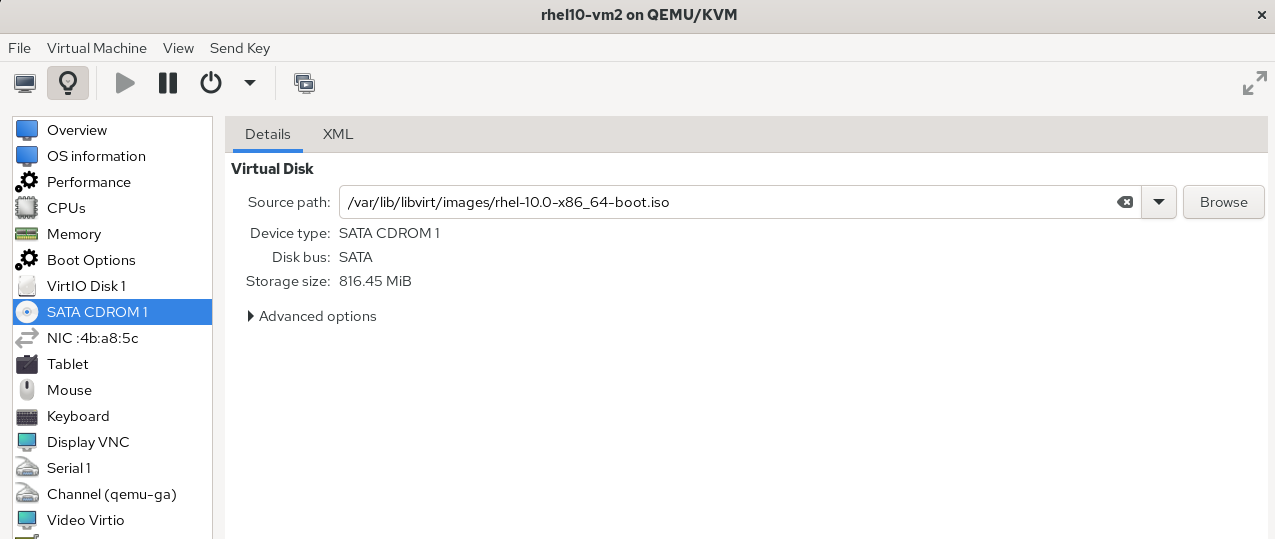
Mount the filesystem to the created Linux tree directory. In case of storage devices, the mount command takes the name of the block device node as the first argument:
user1@rhel10-vm2:~$ mount /dev/sr0 /mnt/cdrom
mount: /mnt/cdrom: must be superuser to use mount.
       dmesg(1) may have more information after failed mount system call.
user1@rhel10-vm2:~$ s
-bash: s: command not found
user1@rhel10-vm2:~$
user1@rhel10-vm2:~$ sudo mount /dev/sr0 /mnt/cdrom
mount: /mnt/cdrom: WARNING: source write-protected, mounted read-only.
user1@rhel10-vm2:~$
Listing the block devices show that the /dev/sr0 block device node has been successfully mounted to the /mnt/cdrom mount point:
user1@rhel10-vm2:~$ lsblk
NAME          MAJ:MIN RM   SIZE RO TYPE MOUNTPOINTS
sr0            11:0    1 816.4M  0 rom  /mnt/cdrom
vda           252:0    0    25G  0 disk
├─vda1        252:1    0     1M  0 part
├─vda2        252:2    0     1G  0 part /boot
└─vda3        252:3    0    24G  0 part
  ├─rhel-root 253:0    0    22G  0 lvm  /
  └─rhel-swap 253:1    0     2G  0 lvm  [SWAP]
user1@rhel10-vm2:~$
The mount point is typically an ordinary Linux tree directory. Thus it can be accessed using regular Linux directory commands:
user1@rhel10-vm2:~$ ls -l /mnt/cdrom
total 6
drwxr-xr-x. 1 root root 2048 Apr 10  2025 boot
drwxr-xr-x. 1 root root 2048 Apr 10  2025 EFI
drwxr-xr-x. 1 root root 2048 Apr 10  2025 images
user1@rhel10-vm2:~$
attach multiple filesystems to the same mount point#
I created two partitions, /dev/sdb1 and /dev/sdb2. I formatted them with filesystems. I mounted the filesystem contains on /dev/sdb1 to /mnt/mountPoint01. Then I mounted the filesystem contained on /dev/sdb1 to the same mount point. I repeated this mounting cycle a couple of times. Here is what I’ve got:
user1@rhel10-vm2:~$ lsblk /dev/sdb
NAME   MAJ:MIN RM   SIZE RO TYPE MOUNTPOINTS
sdb      8:16   0 409.6M  0 disk
├─sdb1   8:17   0    13M  0 part /mnt/mountPoint01
└─sdb2   8:18   0   100M  0 part
user1@rhel10-vm2:~$

user1@rhel10-vm2:~$ sudo mount /dev/sdb2 /mnt/mountPoint01/
user1@rhel10-vm2:~$ ls /mnt/mountPoint01/
lost+found
user1@rhel10-vm2:~$ sudo mount /dev/sdb1 /mnt/mountPoint01/
user1@rhel10-vm2:~$
user1@rhel10-vm2:~$ ls /mnt/mountPoint01/
lost+found
user1@rhel10-vm2:~$ mount | grep /dev/sdb
/dev/sdb1 on /mnt/mountPoint01 type ext4 (rw,relatime,seclabel)
/dev/sdb2 on /mnt/mountPoint01 type ext3 (rw,relatime,seclabel)
/dev/sdb1 on /mnt/mountPoint01 type ext4 (rw,relatime,seclabel)
user1@rhel10-vm2:~$
user1@rhel10-vm2:~$ sudo mount /dev/sdb1 /mnt/mountPoint01/
user1@rhel10-vm2:~$ sudo mount /dev/sdb2 /mnt/mountPoint01/
user1@rhel10-vm2:~$ mount | grep /dev/sdb
/dev/sdb1 on /mnt/mountPoint01 type ext4 (rw,relatime,seclabel)
/dev/sdb2 on /mnt/mountPoint01 type ext3 (rw,relatime,seclabel)
/dev/sdb1 on /mnt/mountPoint01 type ext4 (rw,relatime,seclabel)
/dev/sdb1 on /mnt/mountPoint01 type ext4 (rw,relatime,seclabel)
/dev/sdb2 on /mnt/mountPoint01 type ext3 (rw,relatime,seclabel)
user1@rhel10-vm2:~$ lsblk
NAME          MAJ:MIN RM   SIZE RO TYPE MOUNTPOINTS
sda             8:0    0 409.6M  0 disk
sdb             8:16   0 409.6M  0 disk
├─sdb1          8:17   0    13M  0 part /mnt/mountPoint01
│                                       /mnt/mountPoint01
│                                       /mnt/mountPoint01
└─sdb2          8:18   0   100M  0 part /mnt/mountPoint01
                                        /mnt/mountPoint01
sdc             8:32   0 409.6M  0 disk
sr0            11:0    1   9.5G  0 rom
vda           252:0    0    25G  0 disk
├─vda1        252:1    0     1M  0 part
├─vda2        252:2    0     1G  0 part /boot
└─vda3        252:3    0    24G  0 part
  ├─rhel-root 253:0    0    22G  0 lvm  /
  └─rhel-swap 253:1    0     2G  0 lvm  [SWAP]
user1@rhel10-vm2:~$
Then I create a specific empty file in the mount point with each filesystem. The result was a beautiful stack of filesystem mount layers, where each mount comes on top of the previous one.
user1@rhel10-vm2:~$ touch /mnt/mountPoint01/dummy01
touch: cannot touch '/mnt/mountPoint01/dummy01': Permission denied
user1@rhel10-vm2:~$ sudo touch /mnt/mountPoint01/dummy01
user1@rhel10-vm2:~$
user1@rhel10-vm2:~$ df -h /dev/sdb1
df: cannot access '/dev/sdb1': over-mounted by another device
user1@rhel10-vm2:~$
user1@rhel10-vm2:~$ df -h /dev/sdb2
Filesystem      Size  Used Avail Use% Mounted on
/dev/sdb2        89M   31K   84M   1% /mnt/mountPoint01
user1@rhel10-vm2:~$ cat /mnt/mountPoint01/dummy01
user1@rhel10-vm2:~$
user1@rhel10-vm2:~$ sudo mount /dev/sdb1 /mnt/mountPoint01/
user1@rhel10-vm2:~$ sudo touch /mnt/mountPoint01/dymmyForSDB1
user1@rhel10-vm2:~$ ls /mnt/mountPoint01/
dymmyForSDB1  lost+found
user1@rhel10-vm2:~$ df -h /dev/sdb2
df: cannot access '/dev/sdb2': over-mounted by another device
user1@rhel10-vm2:~$
user1@rhel10-vm2:~$ df -h /dev/sdb1
Filesystem      Size  Used Avail Use% Mounted on
/dev/sdb1        11M   14K   11M   1% /mnt/mountPoint01
user1@rhel10-vm2:~$
user1@rhel10-vm2:~$ sudo mount /dev/sdb2 /mnt/mountPoint01/
user1@rhel10-vm2:~$
user1@rhel10-vm2:~$ ls /mnt/mountPoint01/
dummy01  lost+found
user1@rhel10-vm2:~$
Unmounting filesystems in reverse order worked too. I am leveraging df to check whether a filesystem for a block device node, given as an argument, is mounted:
user1@rhel10-vm2:~$ df -h /dev/sdb1
df: cannot access '/dev/sdb1': over-mounted by another device
user1@rhel10-vm2:~$
user1@rhel10-vm2:~$ df -h /dev/sdb2
Filesystem      Size  Used Avail Use% Mounted on
/dev/sdb2        89M   31K   84M   1% /mnt/mountPoint01
user1@rhel10-vm2:~$
user1@rhel10-vm2:~$ sudo umount /mnt/mountPoint01
[sudo] password for user1:
user1@rhel10-vm2:~$
user1@rhel10-vm2:~$ df -h /dev/sdb1
Filesystem      Size  Used Avail Use% Mounted on
/dev/sdb1        11M   14K   11M   1% /mnt/mountPoint01
user1@rhel10-vm2:~$
user1@rhel10-vm2:~$ df -h /dev/sdb2
df: cannot access '/dev/sdb2': over-mounted by another device
user1@rhel10-vm2:~$
find the UUID of filesystems#
for block devices#
blkid and lsblk can be used:
user1@rhel10-vm2:~$ sudo blkid
[sudo] password for user1:
/dev/mapper/rhel-swap: UUID="543756ba-806e-4129-bc0b-757fb1e4d832" TYPE="swap"
/dev/sr0: BLOCK_SIZE="2048" UUID="2025-10-21-06-14-30-00" LABEL="RHEL-10-1-BaseOS-x86_64" TYPE="iso9660" PTTYPE="PMBR"
/dev/mapper/rhel-root: UUID="1cc2a0e5-8ea2-4b31-bbe7-a6d47a824276" BLOCK_SIZE="512" TYPE="xfs"
/dev/vda2: UUID="aeaf7891-fb70-4df0-90b6-bbd996703b8d" BLOCK_SIZE="512" TYPE="xfs" PARTUUID="bb183621-d999-4c18-a37b-9c582e4a889b"
/dev/vda3: UUID="hzpR6U-8XIg-heCy-5Rca-Bmxx-ClO7-Cblxlg" TYPE="LVM2_member" PARTUUID="c1d06fd3-36f8-4661-93dc-42cae53cbac5"
/dev/sda2: PARTLABEL="primary" PARTUUID="33e0451c-6f37-48e2-9f28-3aae9f7fc6aa"
/dev/sda1: PARTLABEL="primary" PARTUUID="59638f19-a814-4bd7-8f6b-39c6f1729829"
/dev/vda1: PARTUUID="12c18282-1514-4f6f-b191-c9f5259f6db8"
user1@rhel10-vm2:~$
The Linux man pages prefer lsblk over blkid when it comes to displaying information about block device nodes.
First, I execute blkid as a non-root user:
user1@rhel10-vm2:~$ blkid
user1@rhel10-vm2:~$
It displayed nothing. Then I executed it with root privileges:
user1@rhel10-vm2:~$ sudo blkid
[sudo] password for user1:
/dev/mapper/rhel-swap: UUID="543756ba-806e-4129-bc0b-757fb1e4d832" TYPE="swap"
/dev/sdb: UUID="jVGmEt-OfuX-siS4-cufB-ceN6-QNHO-KeycBX" TYPE="LVM2_member"
/dev/mapper/vgfs-swapvol: UUID="13b32685-320b-4c45-9809-c929f8825b05" TYPE="swap"
/dev/sr0: BLOCK_SIZE="2048" UUID="2025-10-21-06-14-30-00" LABEL="RHEL-10-1-BaseOS-x86_64" TYPE="iso9660" PTTYPE="PMBR"
/dev/mapper/vgfs-ext4vol: UUID="5377d2bc-f963-4db5-b0dc-679481b8da82" BLOCK_SIZE="1024" TYPE="ext4"
/dev/mapper/rhel-root: UUID="1cc2a0e5-8ea2-4b31-bbe7-a6d47a824276" BLOCK_SIZE="512" TYPE="xfs"
/dev/sdc2: SEC_TYPE="msdos" UUID="454C-606D" BLOCK_SIZE="512" TYPE="vfat" PARTUUID="30642516-02"
/dev/sdc3: UUID="OMg5Lu-N6qU-HfQF-iK5U-RPNe-Skbt-xen5JX" TYPE="LVM2_member" PARTUUID="30642516-03"
/dev/sdc1: UUID="72cdbb05-64a5-4a91-982f-c80b873a9536" BLOCK_SIZE="1024" TYPE="ext4" PARTUUID="30642516-01"
/dev/sda2: UUID="iv5SDH-Oiyn-uSdh-6BUW-ETvx-F1JP-BWvCeP" TYPE="LVM2_member" PARTUUID="d4964510-02"
/dev/sda1: UUID="59e98274-b212-4fa2-b6c4-8e10726302ec" TYPE="swap" PARTUUID="d4964510-01"
/dev/vda2: LABEL="mybootFS" UUID="aeaf7891-fb70-4df0-90b6-bbd996703b8d" BLOCK_SIZE="512" TYPE="xfs" PARTUUID="bb183621-d999-4c18-a37b-9c582e4a889b"
/dev/vda3: UUID="hzpR6U-8XIg-heCy-5Rca-Bmxx-ClO7-Cblxlg" TYPE="LVM2_member" PARTUUID="c1d06fd3-36f8-4661-93dc-42cae53cbac5"
/dev/vda1: PARTUUID="12c18282-1514-4f6f-b191-c9f5259f6db8"
/dev/mapper/vgfs-xfsvol: UUID="4f91a6a3-9dc1-480c-9467-379666ef7566" BLOCK_SIZE="512" TYPE="xfs"
user1@rhel10-vm2:~$
Finally, I executed it again with non-root privileges. It seems that the information about block device nodes got cached. This confirms the risk exposed by the man pages: that blkid gives unverified cached information when executed by non-root users.
Each line in the output of blkid displays:
- the block device node or virtual block devices (e.g. device mapper of logical volumes),
- the disk UUID and eventually the partition UUID,
- a block size value, whose meaning I couldn’t find in the man pages #QA
- the filesystem type: ext4, xfs, swap, etc.
- the partition table type: mbr, etc.
user1@rhel10-vm2:~$ blkid
/dev/mapper/rhel-swap: UUID="543756ba-806e-4129-bc0b-757fb1e4d832" TYPE="swap"
/dev/sdb: UUID="jVGmEt-OfuX-siS4-cufB-ceN6-QNHO-KeycBX" TYPE="LVM2_member"
/dev/mapper/vgfs-swapvol: UUID="13b32685-320b-4c45-9809-c929f8825b05" TYPE="swap"
/dev/sr0: BLOCK_SIZE="2048" UUID="2025-10-21-06-14-30-00" LABEL="RHEL-10-1-BaseOS-x86_64" TYPE="iso9660" PTTYPE="PMBR"
/dev/mapper/vgfs-ext4vol: UUID="5377d2bc-f963-4db5-b0dc-679481b8da82" BLOCK_SIZE="1024" TYPE="ext4"
/dev/mapper/rhel-root: UUID="1cc2a0e5-8ea2-4b31-bbe7-a6d47a824276" BLOCK_SIZE="512" TYPE="xfs"
/dev/sdc2: SEC_TYPE="msdos" UUID="454C-606D" BLOCK_SIZE="512" TYPE="vfat" PARTUUID="30642516-02"
/dev/sdc3: UUID="OMg5Lu-N6qU-HfQF-iK5U-RPNe-Skbt-xen5JX" TYPE="LVM2_member" PARTUUID="30642516-03"
/dev/sdc1: UUID="72cdbb05-64a5-4a91-982f-c80b873a9536" BLOCK_SIZE="1024" TYPE="ext4" PARTUUID="30642516-01"
/dev/sda2: UUID="iv5SDH-Oiyn-uSdh-6BUW-ETvx-F1JP-BWvCeP" TYPE="LVM2_member" PARTUUID="d4964510-02"
/dev/sda1: UUID="59e98274-b212-4fa2-b6c4-8e10726302ec" TYPE="swap" PARTUUID="d4964510-01"
/dev/vda2: LABEL="mybootFS" UUID="aeaf7891-fb70-4df0-90b6-bbd996703b8d" BLOCK_SIZE="512" TYPE="xfs" PARTUUID="bb183621-d999-4c18-a37b-9c582e4a889b"
/dev/vda3: UUID="hzpR6U-8XIg-heCy-5Rca-Bmxx-ClO7-Cblxlg" TYPE="LVM2_member" PARTUUID="c1d06fd3-36f8-4661-93dc-42cae53cbac5"
/dev/mapper/vgfs-xfsvol: UUID="4f91a6a3-9dc1-480c-9467-379666ef7566" BLOCK_SIZE="512" TYPE="xfs"
user1@rhel10-vm2:~$
#QA I do not understand however, why the output of blkid deviates from that of /proc/partitions, especially when the man pages say that blkid takes its information from /proc/partitions. And that is true for running blkid with or without root privileges:
user1@rhel10-vm2:~$ cat /proc/partitions
major minor  #blocks  name

 252        0   26214400 vda
 252        1       1024 vda1
 252        2    1048576 vda2
 252        3   25162752 vda3
   8       16     419431 sdb
   8        0     419431 sda
   8        1     116736 sda1
   8        2     243712 sda2
   8       32     419431 sdc
   8       33     153600 sdc1
   8       34     153600 sdc2
   8       35      98304 sdc3
  11        0    9925440 sr0
 253        0   23019520 dm-0
 253        1    2142208 dm-1
 253        2      98304 dm-2
 253        3     368640 dm-3
 253        4     262144 dm-4
user1@rhel10-vm2:~$
user1@rhel10-vm2:~$ cat /proc/partitions | grep -vE "major|^$"
 252        0   26214400 vda
 252        1       1024 vda1
 252        2    1048576 vda2
 252        3   25162752 vda3
   8       16     419431 sdb
   8        0     419431 sda
   8        1     116736 sda1
   8        2     243712 sda2
   8       32     419431 sdc
   8       33     153600 sdc1
   8       34     153600 sdc2
   8       35      98304 sdc3
  11        0    9925440 sr0
 253        0   23019520 dm-0
 253        1    2142208 dm-1
 253        2      98304 dm-2
 253        3     368640 dm-3
 253        4     262144 dm-4
user1@rhel10-vm2:~$
user1@rhel10-vm2:~$ cat /proc/partitions | grep -vE "major|^$" | wc -l
18
user1@rhel10-vm2:~$ blkid | wc -l
14
user1@rhel10-vm2:~$ sudo blkid | wc -l
15
user1@rhel10-vm2:~$
user1@rhel10-vm2:~$ lsblk -f /boot
lsblk: /boot: not a block device
user1@rhel10-vm2:~$
user1@rhel10-vm2:~$ lsblk -f /dev/vda2
NAME FSTYPE FSVER LABEL UUID                                 FSAVAIL FSUSE% MOUNTPOINTS
vda2 xfs                aeaf7891-fb70-4df0-90b6-bbd996703b8d  634.3M    34% /boot
user1@rhel10-vm2:~$
The xfs_admin -u command prints the UUID of filesystems of type XFS only, which are attached to the Linux tree.
user1@rhel10-vm2:~$ mount -t xfs
/dev/mapper/rhel-root on / type xfs (rw,relatime,seclabel,attr2,inode64,logbufs=8,logbsize=32k,noquota)
/dev/vda2 on /boot type xfs (rw,relatime,seclabel,attr2,inode64,logbufs=8,logbsize=32k,noquota)
user1@rhel10-vm2:~$ xfs_admin -u /dev/vda2
UUID = aeaf7891-fb70-4df0-90b6-bbd996703b8d
user1@rhel10-vm2:~$
for logical volumes#
I optionally can identify them quickly using lsblk. I then execute lvs -v to find out the UUIDs:
user1@rhel10-vm2:~$ lsblk
NAME          MAJ:MIN RM   SIZE RO TYPE MOUNTPOINTS
sda             8:0    0 409.6M  0 disk
├─sda1          8:1    0    20M  0 part
└─sda2          8:2    0  78.1M  0 part
sdb             8:16   0 399.4M  0 disk
sdc             8:32   0 399.4M  0 disk
sdd             8:48   0 399.4M  0 disk
sr0            11:0    1   9.5G  0 rom
vda           252:0    0    25G  0 disk
├─vda1        252:1    0     1M  0 part
├─vda2        252:2    0     1G  0 part /boot
└─vda3        252:3    0    24G  0 part
  ├─rhel-root 253:0    0    22G  0 lvm  /
  └─rhel-swap 253:1    0     2G  0 lvm  [SWAP]
user1@rhel10-vm2:~$
user1@rhel10-vm2:~$ sudo lvs -v
  LV   VG   #Seg Attr       LSize  Maj Min KMaj KMin Pool Origin Data%  Meta%  Move Cpy%Sync Log Convert LV UUID                                LProfile
  root rhel    1 -wi-ao---- 21.95g  -1  -1  253    0                                                     RvCTV5-NeOx-CZAL-7ijh-FxyF-oj8n-amqJpY
  swap rhel    1 -wi-ao----  2.04g  -1  -1  253    1                                                     RtaZ91-Wyfi-g3Qb-6H5V-RYsq-N5Ww-n6mAi1
user1@rhel10-vm2:~$
Or I directly display them with lsblk -f (f for filesystems):
user1@rhel10-vm2:~$ lsblk -f
NAME          FSTYPE      FSVER            LABEL                   UUID                                   FSAVAIL FSUSE% MOUNTPOINTS
sda
├─sda1
└─sda2
sdb
sdc
sdd
sr0           iso9660     Joliet Extension RHEL-10-1-BaseOS-x86_64 2025-10-21-06-14-30-00
vda
├─vda1
├─vda2        xfs                                                  aeaf7891-fb70-4df0-90b6-bbd996703b8d    634.3M    34% /boot
└─vda3        LVM2_member LVM2 001                                 hzpR6U-8XIg-heCy-5Rca-Bmxx-ClO7-Cblxlg
  ├─rhel-root xfs                                                  1cc2a0e5-8ea2-4b31-bbe7-a6d47a824276     17.7G    19% /
  └─rhel-swap swap        1                                        543756ba-806e-4129-bc0b-757fb1e4d832                  [SWAP]
user1@rhel10-vm2:~$
configure and verify filesystem labels#
A filesystem might have a label, which is a text identifier an administrator assigns to the filesystem. Filesystem labels are by definition not unique, i.e two filesystems might have the same label value. For uniqueness, I still consider filesystem UUID as a differentiator.
I use lsblk -f to read the labels of all filesystems. For XFS filesystems, I use xfs_admin -l:
user1@rhel10-vm2:~$ lsblk -f
NAME          FSTYPE      FSVER            LABEL                   UUID                                   FSAVAIL FSUSE% MOUNTPOINTS
sda
├─sda1
└─sda2
sdb
sdc
sdd
sr0           iso9660     Joliet Extension RHEL-10-1-BaseOS-x86_64 2025-10-21-06-14-30-00
vda
├─vda1
├─vda2        xfs                                                  aeaf7891-fb70-4df0-90b6-bbd996703b8d    634.3M    34% /boot
└─vda3        LVM2_member LVM2 001                                 hzpR6U-8XIg-heCy-5Rca-Bmxx-ClO7-Cblxlg
  ├─rhel-root xfs                                                  1cc2a0e5-8ea2-4b31-bbe7-a6d47a824276     17.7G    19% /
  └─rhel-swap swap        1                                        543756ba-806e-4129-bc0b-757fb1e4d832                  [SWAP]
user1@rhel10-vm2:~$
user1@rhel10-vm2:~$ mount -t xfs
/dev/mapper/rhel-root on / type xfs (rw,relatime,seclabel,attr2,inode64,logbufs=8,logbsize=32k,noquota)
/dev/vda2 on /boot type xfs (rw,relatime,seclabel,attr2,inode64,logbufs=8,logbsize=32k,noquota)
user1@rhel10-vm2:~$
user1@rhel10-vm2:~$ xfs_admin -l /dev/mapper/rhel-root
label = ""
user1@rhel10-vm2:~$ xfs_admin -l /dev/vda2
label = ""
user1@rhel10-vm2:~$
Setting a label for a filesystem requires that the latter is unmounted. In a previous action, the filesystem that was mounted on /boot/ has been unmounted. So it does not appear in the output of mount -t xfs anymore. Thus, the filesystem of type XFS can be labeled with xfs_admin -L and the label can be verified with xfs_admin -l:
user1@rhel10-vm2:~$ mount -t xfs
/dev/mapper/rhel-root on / type xfs (rw,relatime,seclabel,attr2,inode64,logbufs=8,logbsize=32k,noquota)
user1@rhel10-vm2:~$
user1@rhel10-vm2:~$ xfs_admin -L bootFs /boot
xfs_admin: cannot open /boot: Is a directory
user1@rhel10-vm2:~$
user1@rhel10-vm2:~$ xfs_admin -L bootFs /dev/vda2
xfs_admin: cannot open /dev/vda2: Permission denied
user1@rhel10-vm2:~$
user1@rhel10-vm2:~$ sudo xfs_admin -L mybootFS /dev/vda2
writing all SBs
new label = "mybootFS"
user1@rhel10-vm2:~$ sudo xfs_admin -l /dev/vda2
label = "mybootFS"
user1@rhel10-vm2:~$ lsblk -f
NAME          FSTYPE      FSVER            LABEL                   UUID                                   FSAVAIL FSUSE% MOUNTPOINTS
sda
├─sda1
└─sda2
sdb
sdc
sdd
sr0           iso9660     Joliet Extension RHEL-10-1-BaseOS-x86_64 2025-10-21-06-14-30-00
vda
├─vda1
├─vda2        xfs                          mybootFS                  aeaf7891-fb70-4df0-90b6-bbd996703b8d
└─vda3        LVM2_member LVM2 001                                 hzpR6U-8XIg-heCy-5Rca-Bmxx-ClO7-Cblxlg
  ├─rhel-root xfs                                                  1cc2a0e5-8ea2-4b31-bbe7-a6d47a824276     17.7G    19% /
  └─rhel-swap swap        1                                        543756ba-806e-4129-bc0b-757fb1e4d832                  [SWAP]
user1@rhel10-vm2:~$
To set a label on ext2, ext3 and ext4 filesystems, I use e2label:
user1@rhel10-vm2:~$ lsblk -f /dev/sdb1
NAME FSTYPE FSVER LABEL UUID                                 FSAVAIL FSUSE% MOUNTPOINTS
sdb1 ext4   1.0         d68fdbd5-ff79-4867-a3f8-9bae2d63cb1f
user1@rhel10-vm2:~$
user1@rhel10-vm2:~$
user1@rhel10-vm2:~$ sudo e2label /dev/sdb1 Testfslabel
[sudo] password for user1:
user1@rhel10-vm2:~$
user1@rhel10-vm2:~$ lsblk -f /dev/sdb1
NAME FSTYPE FSVER LABEL       UUID                                 FSAVAIL FSUSE% MOUNTPOINTS
sdb1 ext4   1.0   Testfslabel d68fdbd5-ff79-4867-a3f8-9bae2d63cb1f
user1@rhel10-vm2:~$
automatic permanent mounting#
The /etc/fstab (filesystemtable) contains all filesystems that are automatically mounted at boot time. I found in my lab that the filesystems are identified in the file with their UUIDs:
user1@rhel10-vm2:~$ cat /etc/fstab

#
# /etc/fstab
# Created by anaconda on Sat Nov 15 11:18:34 2025
#
# Accessible filesystems, by reference, are maintained under '/dev/disk/'.
# See man pages fstab(5), findfs(8), mount(8) and/or blkid(8) for more info.
#
# After editing this file, run 'systemctl daemon-reload' to update systemd
# units generated from this file.
#
UUID=1cc2a0e5-8ea2-4b31-bbe7-a6d47a824276 /                       xfs     defaults        0 0
UUID=aeaf7891-fb70-4df0-90b6-bbd996703b8d /boot                   xfs     defaults        0 0
UUID=543756ba-806e-4129-bc0b-757fb1e4d832 none                    swap    defaults        0 0
user1@rhel10-vm2:~$
In a previous action, I created a label for the filesystem found on /dev/vda2 and mount to /boot/. I now change the corresponding entry in /etc/fstab by commenting out the UUID of the filesystem and replacing it with its newly configured label.
user1@rhel10-vm2:~$ cat /etc/fstab

#
# /etc/fstab
# Created by anaconda on Sat Nov 15 11:18:34 2025
#
# Accessible filesystems, by reference, are maintained under '/dev/disk/'.
# See man pages fstab(5), findfs(8), mount(8) and/or blkid(8) for more info.
#
# After editing this file, run 'systemctl daemon-reload' to update systemd
# units generated from this file.
#
UUID=1cc2a0e5-8ea2-4b31-bbe7-a6d47a824276 /                       xfs     defaults        0 0
UUID=aeaf7891-fb70-4df0-90b6-bbd996703b8d /boot                   xfs     defaults        0 0
UUID=543756ba-806e-4129-bc0b-757fb1e4d832 none                    swap    defaults        0 0
user1@rhel10-vm2:~$ sudo vim /etc/fstab
#
# /etc/fstab
# Created by anaconda on Sat Nov 15 11:18:34 2025
#
# Accessible filesystems, by reference, are maintained under '/dev/disk/'.
# See man pages fstab(5), findfs(8), mount(8) and/or blkid(8) for more info.
#
# After editing this file, run 'systemctl daemon-reload' to update systemd
# units generated from this file.
#
UUID=1cc2a0e5-8ea2-4b31-bbe7-a6d47a824276 /                       xfs     defaults        0 0
#UUID=aeaf7891-fb70-4df0-90b6-bbd996703b8d /boot                   xfs     defaults        0 0
LABEL=mybootFS /boot xfs defaults 0 0
UUID=543756ba-806e-4129-bc0b-757fb1e4d832 none                    swap    defaults        0 0
~
I rebooted the machine with no issues. The label mybootFS on the filesystem stored on /dev/vda2 and mounted on /boot is visible in /etc/fstab:
user1@rhel10-vm2:~$ uptime
 12:37:01 up 0 min,  2 users,  load average: 0.26, 0.08, 0.02
user1@rhel10-vm2:~$
user1@rhel10-vm2:~$ grep LABEL= /etc/fstab
LABEL=mybootFS	/boot	xfs	defaults	0 0
user1@rhel10-vm2:~$
user1@rhel10-vm2:~$ sudo xfs_admin -l /boot
[sudo] password for user1:
label = "mybootFS"
user1@rhel10-vm2:~$
I intentionally modified the entry LABEL=mybootFS /boot xfs defaults 0 0 with mybootFS /boot xfs defaults 0 0:
#
# /etc/fstab
# Created by anaconda on Sat Nov 15 11:18:34 2025
#
# Accessible filesystems, by reference, are maintained under '/dev/disk/'.
# See man pages fstab(5), findfs(8), mount(8) and/or blkid(8) for more info.
#
# After editing this file, run 'systemctl daemon-reload' to update systemd
# units generated from this file.
#
UUID=1cc2a0e5-8ea2-4b31-bbe7-a6d47a824276 /                       xfs     defaults        0 0
#UUID=aeaf7891-fb70-4df0-90b6-bbd996703b8d /boot                   xfs     defaults        0 0
mybootFS        /boot   xfs     defaults        0 0
UUID=543756ba-806e-4129-bc0b-757fb1e4d832 none                    swap    defaults        0 0
~
~
and rebooted the machine. The machine was not coming up.
filesystem size and usage#
From the definition of a filesystem I can infer that it occupies some storage space on a disk, partition or logical volume.
To find out how much storage capacity is used by a filesystem. The lsblk command gave me the mount points, /ext4fs2 and /xfsfs2. So I verify the used storage capacity of both filesystems using their mount points as arguments for df:
user1@rhel10-vm2:~$ df -h /ext4fs2
Filesystem                Size  Used Avail Use% Mounted on
/dev/mapper/vgfs-ext4vol   85M   14K   79M   1% /ext4fs2
user1@rhel10-vm2:~$ df -h /xfsfs2
Filesystem               Size  Used Avail Use% Mounted on
/dev/mapper/vgfs-xfsvol  296M   25M  272M   9% /xfsfs2
user1@rhel10-vm2:~$
The two filesystems combined consume around 26 MiB of storage capacity, out of 409.6 MiB total capacity. But a wrong inference would be to say that /dev/sda still has 409.6 - 26 = 383.6 MiB of free storage capacity; A correct way to calculate remaining free storage capacity on a block device is using sfdisk –list-free.
In fact, the size of a filesystem is not synonym to the size of the storage block device it sits on. This is an important distinction because one might mistakenly interpret the output of df -h as size values of the storage device, presented to the kernel as a block device node, instead of size values of the filesystem. Remaining storage capacities on block device nodes is calculated by sfdisk.
Another obvious hint, is that I can extend the size of a logical volume while keeping the same filesystem size on it.
For mounted filesystems - and this is an important distinction - df displays, by default, their total allocated size, used and available capacity. Such values are expressed in multiples of 1 Kibibyte:
user1@rhel10-vm2:~$ df
Filesystem            1K-blocks    Used Available Use% Mounted on
/dev/mapper/rhel-root  22953984 4287548  18666436  19% /
devtmpfs                   4096       0      4096   0% /dev
tmpfs                    873064       0    873064   0% /dev/shm
tmpfs                    349228     696    348532   1% /run
tmpfs                      1024       0      1024   0% /run/credentials/systemd-journald.service
/dev/vda2                983040  333472    649568  34% /boot
tmpfs                      1024       0      1024   0% /run/credentials/[email protected]
tmpfs                      1024       0      1024   0% /run/credentials/[email protected]
tmpfs                    174612       8    174604   1% /run/user/1000
user1@rhel10-vm2:~$
Use df -m to switch to multiples of 1 Mebibyte aka 1M:
user1@rhel10-vm2:~$ df -m
Filesystem            1M-blocks  Used Available Use% Mounted on
/dev/mapper/rhel-root     22416  4188     18229  19% /
devtmpfs                      4     0         4   0% /dev
tmpfs                       853     0       853   0% /dev/shm
tmpfs                       342     1       341   1% /run
tmpfs                         1     0         1   0% /run/credentials/systemd-journald.service
/dev/vda2                   960   326       635  34% /boot
tmpfs                         1     0         1   0% /run/credentials/[email protected]
tmpfs                         1     0         1   0% /run/credentials/[email protected]
tmpfs                       171     1       171   1% /run/user/1000
user1@rhel10-vm2:~$
or use the visually less penalizing df -h to display values in a human-readable format, again in units of 1024s (K for Kibibyte, M for Mebibyte, G for Gibibyte):
user1@rhel10-vm2:~$ df -h
Filesystem             Size  Used Avail Use% Mounted on
/dev/mapper/rhel-root   22G  4.1G   18G  19% /
devtmpfs               4.0M     0  4.0M   0% /dev
tmpfs                  853M     0  853M   0% /dev/shm
tmpfs                  342M  696K  341M   1% /run
tmpfs                  1.0M     0  1.0M   0% /run/credentials/systemd-journald.service
/dev/vda2              960M  326M  635M  34% /boot
tmpfs                  1.0M     0  1.0M   0% /run/credentials/[email protected]
tmpfs                  1.0M     0  1.0M   0% /run/credentials/[email protected]
tmpfs                  171M  8.0K  171M   1% /run/user/1000
user1@rhel10-vm2:~$
I can add a column for the filesystem type to the human-readable output:
user1@rhel10-vm2:~$ df -hT
Filesystem            Type      Size  Used Avail Use% Mounted on
/dev/mapper/rhel-root xfs        22G  4.1G   18G  19% /
devtmpfs              devtmpfs  4.0M     0  4.0M   0% /dev
tmpfs                 tmpfs     853M     0  853M   0% /dev/shm
tmpfs                 tmpfs     342M  716K  341M   1% /run
tmpfs                 tmpfs     1.0M     0  1.0M   0% /run/credentials/systemd-journald.service
/dev/vda2             xfs       960M  326M  635M  34% /boot
tmpfs                 tmpfs     1.0M     0  1.0M   0% /run/credentials/[email protected]
tmpfs                 tmpfs     1.0M     0  1.0M   0% /run/credentials/[email protected]
tmpfs                 tmpfs     171M  8.0K  171M   1% /run/user/1000
/dev/sdb1             ext4      136M   14K  125M   1% /ext4fs1
/dev/sdb2             vfat      150M     0  150M   0% /vfatfs1
/dev/sdc              xfs       346M   28M  319M   8% /xfsfs1
user1@rhel10-vm2:~$
If I wanted to exclude the tmpfs filesystems from the output:
user1@rhel10-vm2:~$ df -hx tmpfs
Filesystem             Size  Used Avail Use% Mounted on
/dev/mapper/rhel-root   22G  4.1G   18G  19% /
devtmpfs               4.0M     0  4.0M   0% /dev
/dev/vda2              960M  326M  635M  34% /boot
user1@rhel10-vm2:~$
Or restrict the output to a specific filesystem type, for example tmpfs:
user1@rhel10-vm2:~$ df -ht tmpfs
Filesystem      Size  Used Avail Use% Mounted on
tmpfs           853M     0  853M   0% /dev/shm
tmpfs           342M  696K  341M   1% /run
tmpfs           1.0M     0  1.0M   0% /run/credentials/systemd-journald.service
tmpfs           1.0M     0  1.0M   0% /run/credentials/[email protected]
tmpfs           1.0M     0  1.0M   0% /run/credentials/[email protected]
tmpfs           171M  8.0K  171M   1% /run/user/1000
user1@rhel10-vm2:~$
Other filesystem types are available with the -t option:
user1@rhel10-vm2:~$ df -t vfat
Filesystem     1K-blocks  Used Available Use% Mounted on
/dev/sdb2         153404     0    153404   0% /vfatfs1
user1@rhel10-vm2:~$ df -t xfs
Filesystem            1K-blocks    Used Available Use% Mounted on
/dev/mapper/rhel-root  22953984 4288120  18665864  19% /
/dev/vda2                983040  333472    649568  34% /boot
/dev/sdc                 353892   28052    325840   8% /xfsfs1
user1@rhel10-vm2:~$ df -t ext4
Filesystem     1K-blocks  Used Available Use% Mounted on
/dev/sdb1         138297    14    127531   1% /ext4fs1
user1@rhel10-vm2:~$
The distinction that df displays filesystem storage capacity values for only mounted filesystems is critical; A filesystem must be mounted first, then df displays its storage capacity values. The following example illustrates this distinction:
- I initialized a brand new storage disk with a partition table,
- I formatted it with the ext3 filesystem,
- I did not mount it,
lsblk -fshows ext3,
user1@rhel10-vm2:~$ lsblk -f /dev/sda
NAME FSTYPE FSVER LABEL UUID                                 FSAVAIL FSUSE% MOUNTPOINTS
sda  ext3   1.0         f95c8147-c1e0-4f30-9dd7-2772b2ba275e
user1@rhel10-vm2:~$
df -hshows devtmpfs.
user1@rhel10-vm2:~$ df -h /dev/sda
Filesystem      Size  Used Avail Use% Mounted on
devtmpfs        4.0M     0  4.0M   0% /dev
user1@rhel10-vm2:~$
At first I got confused. But after doing my research, I learned that the output was completely normal; The argument I gave to df was the block device node. df looked for the filesystem that was mount on that block device and it found devtmpfs mounted on /dev. ext3 was not found because it was not attached at any mount point.
Also notice that I gave a block device node as an argument to df instead of a mount point; This gives the same result as with a mount point as long as the block device node contains a filesystem that is attached at that specific mount point.
This can be also identified with other storage devices like cdroms; The filesystem on the CD-ROM media has not been mounted to the Linux tree, which is depicted by the absence of a mount point for sr0 using lsblk.
user1@rhel10-vm2:~$ lsblk
NAME          MAJ:MIN RM   SIZE RO TYPE MOUNTPOINTS
sda             8:0    0 409.6M  0 disk
sdb             8:16   0 409.6M  0 disk
sdc             8:32   0 409.6M  0 disk
sr0            11:0    1   9.5G  0 rom
vda           252:0    0    25G  0 disk
├─vda1        252:1    0     1M  0 part
├─vda2        252:2    0     1G  0 part /boot
└─vda3        252:3    0    24G  0 part
  ├─rhel-root 253:0    0    22G  0 lvm  /
  └─rhel-swap 253:1    0     2G  0 lvm  [SWAP]
user1@rhel10-vm2:~$
So any attempt, with df, to display the filesystem on a file path entered as an argument will be processed using this logic:
dfattempt to display the filesystem mounted on /mnt/cdrom. It finds nothing. It goes one step higher in the Linux tree.dfattempts to display the filesystem mounted on /mnt. It finds nothing. It goes one step higher in the Linux tree.dfattempts to display the filesystem mounted on /. It finds /dev/mapper/rhel-root (which is confirmed by the output oflsblkabove):
user1@rhel10-vm2:~$ ls /mnt
cdrom  mountPoint01
user1@rhel10-vm2:~$

user1@rhel10-vm2:~$ df -h /mnt/cdrom
Filesystem             Size  Used Avail Use% Mounted on
/dev/mapper/rhel-root   22G  4.1G   18G  19% /
user1@rhel10-vm2:~$

user1@rhel10-vm2:~$ df -h /mnt
Filesystem             Size  Used Avail Use% Mounted on
/dev/mapper/rhel-root   22G  4.1G   18G  19% /
user1@rhel10-vm2:~$
Another confusion occurred while interpreting this output:
user1@rhel10-vm2:~$ lsblk /dev/vda2
NAME MAJ:MIN RM SIZE RO TYPE MOUNTPOINTS
vda2 252:2    0   1G  0 part /boot
user1@rhel10-vm2:~$
user1@rhel10-vm2:~$ df -h /boot
Filesystem      Size  Used Avail Use% Mounted on
/dev/vda2       960M  326M  635M  34% /boot
user1@rhel10-vm2:~$
I was expecting to see the filesystem type in the output of df. Then I found out that the Filesystem column displayed either the block device node or the virtual block device where the filesystem, attached at the mount point mentioned in the argument in df, resides. This interpretation made more sense to me, especially after discovering the -T option of df, which displays the filesystem type.
user1@rhel10-vm2:~$ lsblk /dev/rhel/root
NAME      MAJ:MIN RM SIZE RO TYPE MOUNTPOINTS
rhel-root 253:0    0  22G  0 lvm  /
user1@rhel10-vm2:~$ df -h /
Filesystem             Size  Used Avail Use% Mounted on
/dev/mapper/rhel-root   22G  4.1G   18G  19% /
user1@rhel10-vm2:~$ df -hT /
Filesystem            Type  Size  Used Avail Use% Mounted on
/dev/mapper/rhel-root xfs    22G  4.1G   18G  19% /
user1@rhel10-vm2:~$
user1@rhel10-vm2:~$ lsblk /dev/vda2
NAME MAJ:MIN RM SIZE RO TYPE MOUNTPOINTS
vda2 252:2    0   1G  0 part /boot
user1@rhel10-vm2:~$ df -h /boot
Filesystem      Size  Used Avail Use% Mounted on
/dev/vda2       960M  326M  635M  34% /boot
user1@rhel10-vm2:~$ df -hT /boot
Filesystem     Type  Size  Used Avail Use% Mounted on
/dev/vda2      xfs   960M  326M  635M  34% /boot
user1@rhel10-vm2:~$
resize filesystems after resizing block device#
Increasing or decreasing the size of a partition or a logical volume where a filesystem is stored, does not automatically increase or decrease the size of its filesystem; This must be done manually.
increasing filesystem size#
When I do lvresize -r -L on /dev/vgfs/ext4vol for example to increase the size of a logical volume, the command impacts both the logical volume and the filesystem it contains simultaneously, because of the following: the resizing process checked the current size of the filesystem, compared it against the target size of the logical volume, found no capacity overflow and allowed the resize operation.
example 1#
I am increasing the size of a logical volume and observing the size of its filesystem.
user1@rhel10-vm2:~$ sudo lvs vgfs
[sudo] password for user1:
  LV      VG   Attr       LSize   Pool Origin Data%  Meta%  Move Log Cpy%Sync Convert
  ext4vol vgfs -wi-ao---- 104.00m
  xfsvol  vgfs -wi-ao---- 360.00m
user1@rhel10-vm2:~$
user1@rhel10-vm2:~$ df -h /dev/vgfs/ext4vol
Filesystem                Size  Used Avail Use% Mounted on
/dev/mapper/vgfs-ext4vol   92M   14K   86M   1% /ext4fs2
user1@rhel10-vm2:~$
Resizing the logical volume and observing the impact on its filesystem:
user1@rhel10-vm2:~$ sudo lvresize --size +20m vgfs/ext4vol
  Rounding size to boundary between physical extents: 24.00 MiB.
  Size of logical volume vgfs/ext4vol changed from 104.00 MiB (13 extents) to 128.00 MiB (16 extents).
  Logical volume vgfs/ext4vol successfully resized.
user1@rhel10-vm2:~$
user1@rhel10-vm2:~$ sudo lvs vgfs/ext4vol
  LV      VG   Attr       LSize   Pool Origin Data%  Meta%  Move Log Cpy%Sync Convert
  ext4vol vgfs -wi-ao---- 128.00m
user1@rhel10-vm2:~$
user1@rhel10-vm2:~$ df -h /dev/vgfs/ext4vol
Filesystem                Size  Used Avail Use% Mounted on
/dev/mapper/vgfs-ext4vol   92M   14K   86M   1% /ext4fs2
user1@rhel10-vm2:~$
There was no change to the size of the filesystem; So I must manually resize it with fsadm resize:
user1@rhel10-vm2:~$ df -h /dev/vgfs/ext4vol
Filesystem                Size  Used Avail Use% Mounted on
/dev/mapper/vgfs-ext4vol   92M   14K   86M   1% /ext4fs2
user1@rhel10-vm2:~$ sudo fsadm resize /dev/vgfs/ext4vol
resize2fs 1.47.1 (20-May-2024)
Filesystem at /dev/mapper/vgfs-ext4vol is mounted on /ext4fs2; on-line resizing required
old_desc_blocks = 1, new_desc_blocks = 1
The filesystem on /dev/mapper/vgfs-ext4vol is now 131072 (1k) blocks long.

user1@rhel10-vm2:~$ df -h /dev/vgfs/ext4vol
Filesystem                Size  Used Avail Use% Mounted on
/dev/mapper/vgfs-ext4vol  115M   14K  108M   1% /ext4fs2
user1@rhel10-vm2:~$
example 2#
user1@rhel10-vm2:~$ sudo lvs vgfs -v
  LV      VG   #Seg Attr       LSize   Maj Min KMaj KMin Pool Origin Data%  Meta%  Move Cpy%Sync Log Convert LV UUID                                LProfile
  ext4vol vgfs    3 -wi-ao----  96.00m  -1  -1  253    2                                                     xHk1zb-pELn-w0eo-zHAS-L9f1-38H9-BYENB4
  swapvol vgfs    2 -wi-ao---- 256.00m  -1  -1  253    4                                                     ZTaAHD-r1mQ-5MHH-fvGp-5aRN-eb2L-uOxzMr
  xfsvol  vgfs    2 -wi-ao---- 360.00m  -1  -1  253    3                                                     DmXR46-nZfA-75IX-1Gwg-PNPq-zuVN-iSxnaE
user1@rhel10-vm2:~$
user1@rhel10-vm2:~$ df -h /dev/vgfs/ext4vol
Filesystem                Size  Used Avail Use% Mounted on
/dev/mapper/vgfs-ext4vol   85M   14K   79M   1% /ext4fs2
user1@rhel10-vm2:~$
user1@rhel10-vm2:~$ sudo lvresize -r -L -8 /dev/vgfs/ext4vol
  File system ext4 found on vgfs/ext4vol mounted at /ext4fs2.
  File system size (96.00 MiB) is larger than the requested size (88.00 MiB).
  File system reduce is required using resize2fs.
  File system unmount is needed for reduce.
  File system fsck will be run before reduce.
Continue with ext4 file system reduce steps: unmount, fsck, resize2fs? [y/n]:y
  Reducing file system ext4 to 88.00 MiB (92274688 bytes) on vgfs/ext4vol...
unmount /ext4fs2
unmount done
e2fsck /dev/vgfs/ext4vol
/dev/vgfs/ext4vol: 11/24576 files (0.0% non-contiguous), 11827/98304 blocks
e2fsck done
resize2fs /dev/vgfs/ext4vol 90112k
resize2fs 1.47.1 (20-May-2024)
Resizing the filesystem on /dev/vgfs/ext4vol to 90112 (1k) blocks.
The filesystem on /dev/vgfs/ext4vol is now 90112 (1k) blocks long.

resize2fs done
remount /dev/vgfs/ext4vol /ext4fs2
remount done
  Reduced file system ext4 on vgfs/ext4vol.
  Size of logical volume vgfs/ext4vol changed from 96.00 MiB (12 extents) to 88.00 MiB (11 extents).
  Logical volume vgfs/ext4vol successfully resized.
user1@rhel10-vm2:~$
user1@rhel10-vm2:~$ df -h /dev/vgfs/ext4vol
Filesystem                Size  Used Avail Use% Mounted on
/dev/mapper/vgfs-ext4vol   77M   14K   72M   1% /ext4fs2
user1@rhel10-vm2:~$ sudo lvs /dev/vgfs/ext4vol
  LV      VG   Attr       LSize  Pool Origin Data%  Meta%  Move Log Cpy%Sync Convert
  ext4vol vgfs -wi-ao---- 88.00m
user1@rhel10-vm2:~$
decreasing filesystem size#
Reducing the size of a partition or a logical volume where a filesystem is stored is tricky. The filesystem size is a hard control on whether a partition or logical volume shrinking operation succeeds: it will fail if the current size of the filesystem is larger than the target size of the underlying block device.
For example, when downsizing logical volumes with lvresize but without the -r option, the command will generate an error if the current size of the filesystem exceeds the target size of the logical volume. The -r option instructs the resizing process to perform that check and if the result is negative, i.e. the current size of the filesystem is smaller than the target size of the logical volume, the shrinking operation will succeed.
example 1#
I am reducing the size of a logical volume vgfs/ext4vol by 20 MiB. Then I observe the size of its filesystem. I first verify the size of the ext4 filesystem that is located on the ext4vol logical volume. Currently it is at around 63 MiB:
user1@rhel10-vm2:~$ df -ht ext4 | grep ext4vol
/dev/mapper/vgfs-ext4vol   63M   14K   58M   1% /ext4fs2
user1@rhel10-vm2:~$
I verify the size of the logical volume before the resizing operation:
user1@rhel10-vm2:~$ sudo lvs vgfs/ext4vol
[sudo] password for user1:
  LV      VG   Attr       LSize   Pool Origin Data%  Meta%  Move Log Cpy%Sync Convert
  ext4vol vgfs -wi-ao---- 120.00m
user1@rhel10-vm2:~$
I execute the command to resize the logical volume:
user1@rhel10-vm2:~$ sudo lvresize --size -20 vgfs/ext4vol
  Rounding size to boundary between physical extents: 16.00 MiB.
  File system ext4 found on vgfs/ext4vol mounted at /ext4fs2.
  File system size (72.00 MiB) is smaller than the requested size (104.00 MiB).
  File system reduce is not needed, skipping.
  Size of logical volume vgfs/ext4vol changed from 120.00 MiB (15 extents) to 104.00 MiB (13 extents).
  Logical volume vgfs/ext4vol successfully resized.
user1@rhel10-vm2:~$
I verify the resulting size:
user1@rhel10-vm2:~$ sudo lvs vgfs/ext4vol
  LV      VG   Attr       LSize   Pool Origin Data%  Meta%  Move Log Cpy%Sync Convert
  ext4vol vgfs -wi-ao---- 104.00m
I verify the size of the filesystem after that; Note its size did not change (still at 63 MiB) despite having shrunk the logical volume where it resides:
user1@rhel10-vm2:~$ df -ht ext4 | grep ext4vol
/dev/mapper/vgfs-ext4vol   63M   14K   58M   1% /ext4fs2
user1@rhel10-vm2:~$
That is why I must manually resize the filesystem with a dedicated command: fsadm resize:
user1@rhel10-vm2:~$ sudo fsadm resize /dev/vgfs/ext4vol
resize2fs 1.47.1 (20-May-2024)
Filesystem at /dev/mapper/vgfs-ext4vol is mounted on /ext4fs2; on-line resizing required
old_desc_blocks = 1, new_desc_blocks = 1
The filesystem on /dev/mapper/vgfs-ext4vol is now 106496 (1k) blocks long.

user1@rhel10-vm2:~$ df -ht ext4 | grep ext4vol
/dev/mapper/vgfs-ext4vol   92M   14K   86M   1% /ext4fs2
user1@rhel10-vm2:~$
#QA I do not yet understand why the filesystem size increased from 63 MiB to 92 MiB, while the size of its logical volume decreased from 120 MiB to 104 MiB.
example 2#
The filesystem size is updated with fsadm resize. I am trying to shrink the logical volume it resides on to a value smaller than the current size of the filesystem.
user1@rhel10-vm2:~$ sudo lvs vgfs/ext4vol
  LV      VG   Attr       LSize   Pool Origin Data%  Meta%  Move Log Cpy%Sync Convert
  ext4vol vgfs -wi-ao---- 128.00m
user1@rhel10-vm2:~$
user1@rhel10-vm2:~$ df -h /dev/vgfs/ext4vol
Filesystem                Size  Used Avail Use% Mounted on
/dev/mapper/vgfs-ext4vol  115M   14K  108M   1% /ext4fs2
user1@rhel10-vm2:~$
user1@rhel10-vm2:~$ sudo lvresize --size -20m /dev/vgfs/ext4vol
  Rounding size to boundary between physical extents: 16.00 MiB.
  File system ext4 found on vgfs/ext4vol mounted at /ext4fs2.
  File system size (128.00 MiB) is larger than the requested size (112.00 MiB).
  File system reduce is required (see resize2fs or --resizefs.)
user1@rhel10-vm2:~$
user1@rhel10-vm2:~$ sudo lvs /dev/vgfs/ext4vol
  LV      VG   Attr       LSize   Pool Origin Data%  Meta%  Move Log Cpy%Sync Convert
  ext4vol vgfs -wi-ao---- 128.00m
user1@rhel10-vm2:~$
The size of the logical volume did not change because the current size of the filesystem is larger than the desired size of the logical volume.
I’ve noticed that the fsadm resize command without arguments only changes the size of filesystems to a potentially higher value. But to reduce it, I needed to specify a new size as an argument to the same command.
user1@rhel10-vm2:~$ df -h /dev/vgfs/ext4vol
Filesystem                Size  Used Avail Use% Mounted on
/dev/mapper/vgfs-ext4vol  115M   14K  108M   1% /ext4fs2
user1@rhel10-vm2:~$
user1@rhel10-vm2:~$ sudo fsadm resize /dev/vgfs/ext4vol 112m
Do you want to unmount "/ext4fs2" ? [Y|n] y
fsck from util-linux 2.40.2
/dev/mapper/vgfs-ext4vol: 11/32768 files (0.0% non-contiguous), 13883/131072 blocks
resize2fs 1.47.1 (20-May-2024)
Resizing the filesystem on /dev/mapper/vgfs-ext4vol to 114688 (1k) blocks.
The filesystem on /dev/mapper/vgfs-ext4vol is now 114688 (1k) blocks long.

user1@rhel10-vm2:~$ df -h /dev/vgfs/ext4vol
Filesystem                Size  Used Avail Use% Mounted on
/dev/mapper/vgfs-ext4vol  100M   14K   93M   1% /ext4fs2
user1@rhel10-vm2:~$
What if I combined both resize actions into one by using the lvresize -r command and reduce the time taken to achieve the same result?
user1@rhel10-vm2:~$ sudo lvs /dev/vgfs/ext4vol
[sudo] password for user1:
  LV      VG   Attr       LSize   Pool Origin Data%  Meta%  Move Log Cpy%Sync Convert
  ext4vol vgfs -wi-ao---- 112.00m
user1@rhel10-vm2:~$
user1@rhel10-vm2:~$ df -h /dev/vgfs/ext4vol
Filesystem                Size  Used Avail Use% Mounted on
/dev/mapper/vgfs-ext4vol  100M   14K   93M   1% /ext4fs2
user1@rhel10-vm2:~$
user1@rhel10-vm2:~$ sudo lvresize -r --size -20m /dev/vgfs/ext4vol
  Rounding size to boundary between physical extents: 16.00 MiB.
  File system ext4 found on vgfs/ext4vol mounted at /ext4fs2.
  File system size (112.00 MiB) is larger than the requested size (96.00 MiB).
  File system reduce is required using resize2fs.
  File system unmount is needed for reduce.
  File system fsck will be run before reduce.
Continue with ext4 file system reduce steps: unmount, fsck, resize2fs? [y/n]:y
  Reducing file system ext4 to 96.00 MiB (100663296 bytes) on vgfs/ext4vol...
unmount /ext4fs2
unmount done
e2fsck /dev/vgfs/ext4vol
/dev/vgfs/ext4vol: 11/28672 files (0.0% non-contiguous), 12855/114688 blocks
e2fsck done
resize2fs /dev/vgfs/ext4vol 98304k
resize2fs 1.47.1 (20-May-2024)
Resizing the filesystem on /dev/vgfs/ext4vol to 98304 (1k) blocks.
The filesystem on /dev/vgfs/ext4vol is now 98304 (1k) blocks long.

resize2fs done
remount /dev/vgfs/ext4vol /ext4fs2
remount done
  Reduced file system ext4 on vgfs/ext4vol.
  Size of logical volume vgfs/ext4vol changed from 112.00 MiB (14 extents) to 96.00 MiB (12 extents).
  Logical volume vgfs/ext4vol successfully resized.
user1@rhel10-vm2:~$
user1@rhel10-vm2:~$ sudo lvs /dev/vgfs/ext4vol
  LV      VG   Attr       LSize  Pool Origin Data%  Meta%  Move Log Cpy%Sync Convert
  ext4vol vgfs -wi-ao---- 96.00m
user1@rhel10-vm2:~$ df -h /dev/vgfs/ext4vol
Filesystem                Size  Used Avail Use% Mounted on
/dev/mapper/vgfs-ext4vol   85M   14K   79M   1% /ext4fs2
user1@rhel10-vm2:~$
wipe filesystems#
I can delete filesystem signatures off a disk or a partition with wipefs. The wipefs command, with no options, displays information about the block device such as its filesystem type and UUID.
user1@rhel10-vm2:~$ sudo wipefs /dev/sdc1
[sudo] password for user1:
DEVICE OFFSET TYPE UUID                                 LABEL
sdc1   0xff6  swap 637205c2-ea6c-45f9-9faa-056d8df51580
user1@rhel10-vm2:~$
To wipe the filesystem from the device, add the -a option:
user1@rhel10-vm2:~$ lsblk -f /dev/sdc1
NAME FSTYPE FSVER LABEL UUID                                 FSAVAIL FSUSE% MOUNTPOINTS
sdc1 swap   1           637205c2-ea6c-45f9-9faa-056d8df51580
user1@rhel10-vm2:~$
user1@rhel10-vm2:~$ wipefs -a /dev/sdc1
wipefs: error: /dev/sdc1: probing initialization failed: Permission denied
user1@rhel10-vm2:~$
user1@rhel10-vm2:~$ sudo wipefs -a /dev/sdc1
/dev/sdc1: 10 bytes were erased at offset 0x00000ff6 (swap): 53 57 41 50 53 50 41 43 45 32
user1@rhel10-vm2:~$
user1@rhel10-vm2:~$ lsblk -f /dev/sdc1
NAME FSTYPE FSVER LABEL UUID FSAVAIL FSUSE% MOUNTPOINTS
sdc1
user1@rhel10-vm2:~$
swap#
Swap space is used to store memory pages of idle processes on disk, whenever available physical memory becomes low. It is by no means a definitive solution to a lack of physical memory problem. In extreme cases where the swap space is heavily sollicited, the system reaction times might degrade considerably.
I use the free -h command to verify total, used and free swap space:
user1@rhel10-vm2:~$ free -h
               total        used        free      shared  buff/cache   available
Mem:           1.7Gi       428Mi       1.2Gi       4.6Mi       207Mi       1.2Gi
Swap:          2.0Gi          0B       2.0Gi
user1@rhel10-vm2:~$ free -ht
               total        used        free      shared  buff/cache   available
Mem:           1.7Gi       422Mi       1.2Gi       4.6Mi       207Mi       1.3Gi
Swap:          2.0Gi          0B       2.0Gi
Total:         3.7Gi       422Mi       3.2Gi
user1@rhel10-vm2:~$
The data for the free command is taken from the /proc/meminfo virtual file.
user1@rhel10-vm2:~$ cat /proc/meminfo | grep -iE "swap|mem"
MemTotal:        1746132 kB
MemFree:         1266252 kB
MemAvailable:    1334008 kB
SwapCached:            0 kB
SwapTotal:       2142204 kB
SwapFree:        2142204 kB
Zswap:                 0 kB
Zswapped:              0 kB
Shmem:              4744 kB
ShmemHugePages:        0 kB
ShmemPmdMapped:        0 kB
user1@rhel10-vm2:~$
Create a new swap space from a logical volume:
user1@rhel10-vm2:~$ lsblk -f
NAME             FSTYPE      FSVER            LABEL                   UUID                                   FSAVAIL FSUSE% MOUNTPOINTS
sda
├─sda1           swap        1                                        59e98274-b212-4fa2-b6c4-8e10726302ec
└─sda2           LVM2_member LVM2 001                                 iv5SDH-Oiyn-uSdh-6BUW-ETvx-F1JP-BWvCeP
  └─vgfs-swapvol
<---- output omitted ---->
user1@rhel10-vm2:~$ sudo mkswap vgfs/swapvol
mkswap: cannot open vgfs/swapvol: No such file or directory
user1@rhel10-vm2:~$ sudo mkswap swapvol
mkswap: cannot open swapvol: No such file or directory
user1@rhel10-vm2:~$ mkswap /dev/vgfs/swapvol
mkswap: cannot open /dev/vgfs/swapvol: Permission denied
user1@rhel10-vm2:~$
user1@rhel10-vm2:~$ sudo mkswap /dev/vgfs/swapvol
Setting up swapspace version 1, size = 256 MiB (268431360 bytes)
no label, UUID=13b32685-320b-4c45-9809-c929f8825b05
user1@rhel10-vm2:~$
user1@rhel10-vm2:~$ lsblk -f /dev/sda1
NAME FSTYPE FSVER LABEL UUID                                 FSAVAIL FSUSE% MOUNTPOINTS
sda1 swap   1           59e98274-b212-4fa2-b6c4-8e10726302ec
user1@rhel10-vm2:~$
But that does not automatically increase the available swap size. The total swap size remained at 2 GiB as before. Maybe because I still did not enable the area with swapon?
user1@rhel10-vm2:~$ free -h
               total        used        free      shared  buff/cache   available
Mem:           1.7Gi       402Mi       1.2Gi       4.7Mi       240Mi       1.3Gi
Swap:          2.0Gi          0B       2.0Gi
user1@rhel10-vm2:~$
When I have more than one partition or logical volume that is used for swap space (i.e. formatted with the swap filesystem using mkswap), I can introduce a priority-based system in the order of selection of swap spaces at system boot. This is possible in the /etc/fstab by adding the pri= option to their respective entries in the file; Notice the last two lines of /etc/fstab:
user1@rhel10-vm2:~$ cat /etc/fstab

#
# /etc/fstab
# Created by anaconda on Sat Nov 15 11:18:34 2025
#
# Accessible filesystems, by reference, are maintained under '/dev/disk/'.
# See man pages fstab(5), findfs(8), mount(8) and/or blkid(8) for more info.
#
# After editing this file, run 'systemctl daemon-reload' to update systemd
# units generated from this file.
#
UUID=1cc2a0e5-8ea2-4b31-bbe7-a6d47a824276 /                       xfs     defaults        0 0
#UUID=aeaf7891-fb70-4df0-90b6-bbd996703b8d /boot                   xfs     defaults        0 0
LABEL=mybootFS	/boot	xfs	defaults	0 0
UUID=543756ba-806e-4129-bc0b-757fb1e4d832 none                    swap    defaults        0 0
#UUID=72cdbb05-64a5-4a91-982f-c80b873a9536 /ext4fs1 ext4 defaults 0 0
#UUID=454C-606D /vfatfs1 vfat defaults 0 0
#UUID=f957de95-b098-4d2f-8168-9333cba1d3b5 /xfsfs1 xfs defaults 0 0
/dev/vgfs/ext4vol /ext4fs2 ext4 defaults 0 0
/dev/vgfs/xfsvol /xfsfs2 xfs defaults 0 0
UUID=59e98274-b212-4fa2-b6c4-8e10726302ec none	swap	defaults,pri=1	0 0
UUID=13b32685-320b-4c45-9809-c929f8825b05 none	swap	defaults,pri=2	0 0
user1@rhel10-vm2:~$
To enable a swap space, I ran swapon -U and gave it the UUID value of its filesystem:
user1@rhel10-vm2:~$ sudo swapon -U 59e98274-b212-4fa2-b6c4-8e10726302ec
[sudo] password for user1:
user1@rhel10-vm2:~$ sudo swapon -U 13b32685-320b-4c45-9809-c929f8825b05
user1@rhel10-vm2:~$
A less precise method to enable swap space is to instruct systemd to enable every swap space that it finds in /etc/fstab, except the ones that have the noauto option:
user1@rhel10-vm2:~$ swapon -va
swapon: /dev/mapper/rhel-swap: already active -- ignored
swapon: /dev/sda1: already active -- ignored
swapon: /dev/mapper/vgfs-swapvol: already active -- ignored
user1@rhel10-vm2:~$
The total swap size increased by the size of the swap spaces added with swapon, from 2 GiB to 2.4 GiB:
user1@rhel10-vm2:~$ free -h
               total        used        free      shared  buff/cache   available
Mem:           1.7Gi       402Mi       1.2Gi       4.7Mi       240Mi       1.3Gi
Swap:          2.0Gi          0B       2.0Gi
user1@rhel10-vm2:~$
user1@rhel10-vm2:~$ free -h
               total        used        free      shared  buff/cache   available
Mem:           1.7Gi       410Mi       1.1Gi       4.7Mi       272Mi       1.3Gi
Swap:          2.4Gi          0B       2.4Gi
user1@rhel10-vm2:~$
user1@rhel10-vm2:~$ swapon
NAME      TYPE      SIZE USED PRIO
/dev/dm-1 partition   2G   0B   -2
/dev/sda1 partition 114M   0B   -3
/dev/dm-4 partition 256M   0B   -4
user1@rhel10-vm2:~$
#QA Why are the first and last line of the output displayed as /dev/dm- entries?
Note that the swapon command also displays the priority of enabled swap spaces.
Here is another example of creating a partition and creating swap filesystem on it:
user1@rhel10-vm2:~$ sudo parted /dev/sda unit MiB mkpart primary 21 30
Information: You may need to update /etc/fstab.

user1@rhel10-vm2:~$
user1@rhel10-vm2:~$ sudo parted /dev/sda unit MiB print
Model: QEMU QEMU HARDDISK (scsi)
Disk /dev/sda: 410MiB
Sector size (logical/physical): 512B/512B
Partition Table: msdos
Disk Flags:

Number  Start    End      Size     Type     File system  Flags
 1      1.00MiB  10.0MiB  9.00MiB  primary
 2      11.0MiB  20.0MiB  9.00MiB  primary  fat16
 3      21.0MiB  30.0MiB  9.00MiB  primary

user1@rhel10-vm2:~$

user1@rhel10-vm2:~$ lsblk -o NAME,FSTYPE,LABEL /dev/sda
NAME   FSTYPE LABEL
sda
├─sda1
├─sda2 vfat   MYFATLABEL
└─sda3
user1@rhel10-vm2:~$ sudo mkswap /dev/sda3
mkswap: /dev/sda3: warning: don't erase bootbits sectors
        (dos partition table detected). Use -f to force.
Setting up swapspace version 1, size = 9 MiB (9433088 bytes)
no label, UUID=37775146-fd3b-4e8c-a2a7-96e9798b7006
user1@rhel10-vm2:~$
user1@rhel10-vm2:~$ lsblk -o NAME,FSTYPE,UUID /dev/sda
NAME   FSTYPE UUID
sda
├─sda1
├─sda2 vfat   3D1C-B6C6
└─sda3 swap   37775146-fd3b-4e8c-a2a7-96e9798b7006
user1@rhel10-vm2:~$
user1@rhel10-vm2:~$ swapon
NAME      TYPE      SIZE USED PRIO
/dev/dm-1 partition   2G   0B   -2
user1@rhel10-vm2:~$
user1@rhel10-vm2:~$ sudo swapon -U 37775146-fd3b-4e8c-a2a7-96e9798b7006
user1@rhel10-vm2:~$ swapon
NAME      TYPE      SIZE USED PRIO
/dev/dm-1 partition   2G   0B   -2
/dev/sda3 partition   9M   0B   -3
user1@rhel10-vm2:~$
user1@rhel10-vm2:~$ cat /etc/fstab

#
# /etc/fstab
# Created by anaconda on Sat Nov 15 11:18:34 2025
#
# Accessible filesystems, by reference, are maintained under '/dev/disk/'.
# See man pages fstab(5), findfs(8), mount(8) and/or blkid(8) for more info.
#
# After editing this file, run 'systemctl daemon-reload' to update systemd
# units generated from this file.
#
UUID=1cc2a0e5-8ea2-4b31-bbe7-a6d47a824276 /                       xfs     defaults        0 0
UUID=aeaf7891-fb70-4df0-90b6-bbd996703b8d /boot                   xfs     defaults        0 0
UUID=543756ba-806e-4129-bc0b-757fb1e4d832 none                    swap    defaults        0 0
LABEL=MYFATLABEL /mnt/mountPoint02 vfat defaults 0 0
user1@rhel10-vm2:~$
After the modification:
user1@rhel10-vm2:~$ cat /etc/fstab

#
# /etc/fstab
# Created by anaconda on Sat Nov 15 11:18:34 2025
#
# Accessible filesystems, by reference, are maintained under '/dev/disk/'.
# See man pages fstab(5), findfs(8), mount(8) and/or blkid(8) for more info.
#
# After editing this file, run 'systemctl daemon-reload' to update systemd
# units generated from this file.
#
UUID=1cc2a0e5-8ea2-4b31-bbe7-a6d47a824276 /                       xfs     defaults        0 0
UUID=aeaf7891-fb70-4df0-90b6-bbd996703b8d /boot                   xfs     defaults        0 0
UUID=543756ba-806e-4129-bc0b-757fb1e4d832 none                    swap    defaults        0 0
LABEL=MYFATLABEL /mnt/mountPoint02 vfat defaults 0 0
UUID=37775146-fd3b-4e8c-a2a7-96e9798b7006 none swap defaults,pri=1 0 0
user1@rhel10-vm2:~$
user1@rhel10-vm2:~$ systemctl daemon-reload
==== AUTHENTICATING FOR org.freedesktop.systemd1.reload-daemon ====
Authentication is required to reload the systemd state.
Authenticating as: user1
Password:
==== AUTHENTICATION COMPLETE ====
user1@rhel10-vm2:~$
user1@rhel10-vm2:~$ sudo findmnt --verify
none
   [W] target specified more than once

0 parse errors, 0 errors, 1 warning
user1@rhel10-vm2:~$
I do not know yet what that warning means #QA.
Before a reboot:
user1@rhel10-vm2:~$ swapon
NAME      TYPE      SIZE USED PRIO
/dev/dm-1 partition   2G   0B   -2
/dev/sda3 partition   9M   0B   -3
user1@rhel10-vm2:~$
After the reboot:
user1@rhel10-vm2:~$ swapon
NAME      TYPE      SIZE USED PRIO
/dev/dm-1 partition   2G   0B   -2
/dev/sda3 partition   9M   0B    1
user1@rhel10-vm2:~$
user1@rhel10-vm2:~$
related posts#
open topics#
#TBC
- hint on the /proc/mounts virtual file
- use
mkfs.<fstype>instead ofmkefsbecause it covers ext family and VFAT. - create extended partitions (on a dos disk) and make swap space out of it.
- Labs of book page 357.
references#
- docs.redhat.com/en/documentation/red_hat_enterprise_linux/10/html/managing_file_systems/overview-of-available-file-systems
- docs.redhat.com/en/documentation/red_hat_enterprise_linux/10/html/managing_file_systems/getting-started-with-xfs
- docs.redhat.com/en/documentation/red_hat_enterprise_linux/10/html/managing_file_systems/mounting-file-systems
- redhat.com/en/blog/du-command-options
- docs.redhat.com/en/documentation/red_hat_enterprise_linux/7/html/storage_administration_guide/ch-filesystem
- docs.redhat.com/en/documentation/red_hat_enterprise_linux/7/html/high_availability_add-on_administration/s1-lvmsetupnfs-haaa
- refspecs.linuxfoundation.org/FHS_3.0/fhs/index.html
- redhat.com/en/blog/etc-fstab
- man7.org
- redhat.com/en/blog/important-proc-files